Convert a PDF to an editable PowerPoint, not a deck of screenshots

Compound rebuilds each PDF page as a PowerPoint slide of native objects: text boxes, shapes, tables and charts you can edit. Here it is on six pages of a public EIA presentation, with both files to download.

Compound Research · Updated Oct 28, 2026 · 8 min read

Short answer

To convert a PDF to an editable PowerPoint, Compound reads each page's text, vector drawing and pictures with their positions, then rebuilds the page from native slide objects. On six pages of a public EIA presentation, it produced a real table, two real charts and editable text boxes and shapes, including a pie chart and a flowchart that the PDF held only as images. The only pictures in the deck are the EIA logos.

Try it now
On this page (10)
  1. 1. How to convert a PDF to PowerPoint you can edit
  2. 2. A picture of a pie chart becomes a real chart
  3. 3. Tables come back as tables
  4. 4. Diagrams and flowcharts become editable shapes
  5. 5. Line charts rebuilt from the drawing
  6. 6. Checking the slides against the PDF
  7. 7. Insert PDF pages into an existing deck
  8. 8. What to expect from a PDF to PowerPoint conversion
  9. 9. Download the PDF and the PowerPoint
  10. 10. FAQ
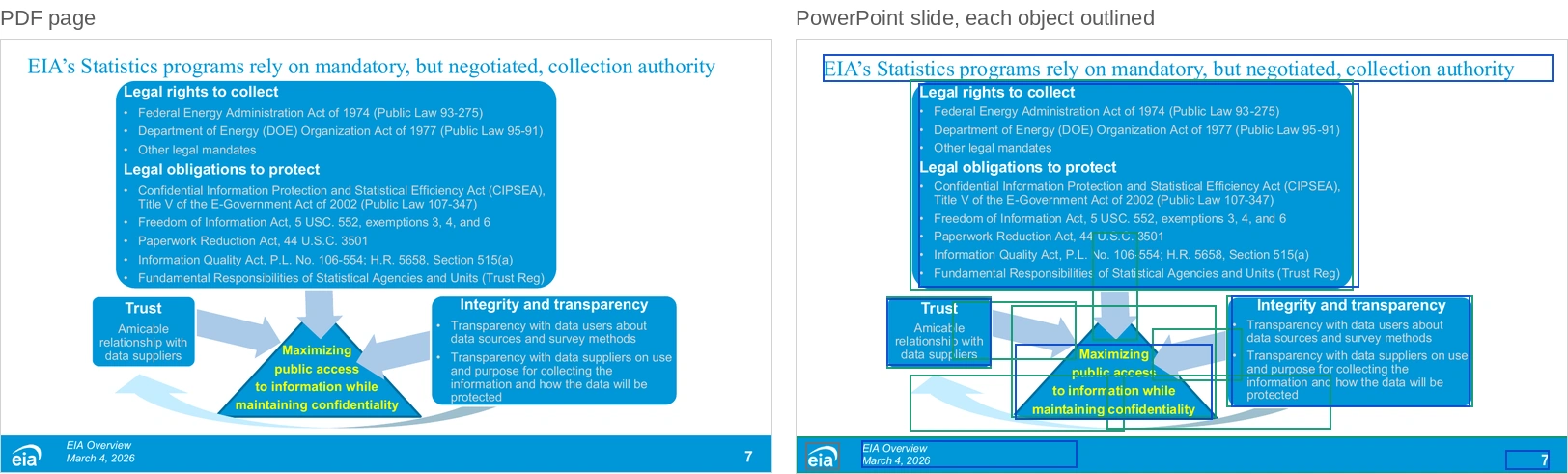
Side by side: on the left, a PDF page from a U.S. Energy Information Administration presentation headlined 'EIA's Statistics programs rely on mandatory, but negotiated, collection authority', with a rounded blue panel of legal authorities, a triangle reading 'Maximizing public access to information while maintaining confidentiality', two side panels and arrows. On the right, the PowerPoint slide Compound rebuilt from it, rendered in PowerPoint, with an outline drawn around each object: the title and the text of each panel are text boxes, and the panels, triangle, arrows and curved arrow are separate shapes.
Ask: “Convert this PDF into an editable PowerPoint deck, one slide per page, with native text, shapes, tables and charts.” Left, page 4 of the PDF; right, the slide from a real Compound run, rendered in PowerPoint, with each object outlined: blue for text boxes, green for shapes, gray for pictures. The source is a public-domain U.S. Energy Information Administration presentation.

You have a deck as a PDF: a banker’s pitch, a consultant’s market study, a few pages of a report, an old presentation whose source file is gone. You need it as PowerPoint, to reuse a chart, fix a number, restyle it or drop pages into your own deck.

The usual converters give you one of two things. Some paste a picture of each page onto a slide, which looks right and cannot be edited. Others break the page into hundreds of loose text fragments and lines, which can be edited and are hard to work with. Neither gives you a table you can type in or a chart whose data you can change.

Compound rebuilds each page instead. It reads the text runs, vector paths and pictures on the page with their positions, works out what they are, and draws the slide again from native PowerPoint objects: text boxes, shapes, real tables and real charts. It uses a picture only for an actual photo or logo. This page walks through one real run on six pages of a public presentation, and both files are free to download below.

The PDF is six pages of “EIA’s Role in Supporting the Nation’s Energy Dialogue”, a presentation the U.S. Energy Information Administration gave on March 4, 2026. As a U.S. government publication it is in the public domain (EIA’s reuse policy). Source: U.S. Energy Information Administration (March 2026). The PowerPoint is Compound’s output from one run, unedited.

How to convert a PDF to PowerPoint you can edit

Upload the PDF to Compound and ask for an editable deck.

Prompt“Convert [file].pdf into an editable PowerPoint deck, one slide per page. Rebuild each page with native PowerPoint objects: editable text boxes, shapes, real tables and charts where the page has them, and pictures only for actual photos and logos. Match the layout, fonts and colors of the PDF, and check your slides against the PDF pages before you finish.”

Compound read all six pages, pulled out the pictures, and built one 16:9 slide per page at the PDF’s page size. It set the deck’s theme fonts to the ones the PDF uses, Times New Roman for titles and Arial for body text, and the EIA blue as the main theme color, so a new slide added to the deck matches the old ones.

6

PDF pages, six editable slides

3

real tables and charts

0

pages pasted as pictures

A typical PDF converter

Places a picture of each page on a slide, or splits the page into loose text fragments and lines. A table becomes a grid of separate text boxes; a chart becomes a picture or a pile of lines. Nothing checks the result against the page.

In Compound

Rebuilds each page from native objects: text boxes that wrap, shapes you can move, a table you can type in and charts with their data behind them. Then it renders its slides, compares them with the PDF pages and fixes the differences.

A picture of a pie chart becomes a real chart

The pie chart on the second page is not a chart in the PDF at all. It is a JPEG, a picture of a chart, so a converter can only copy it as a picture.
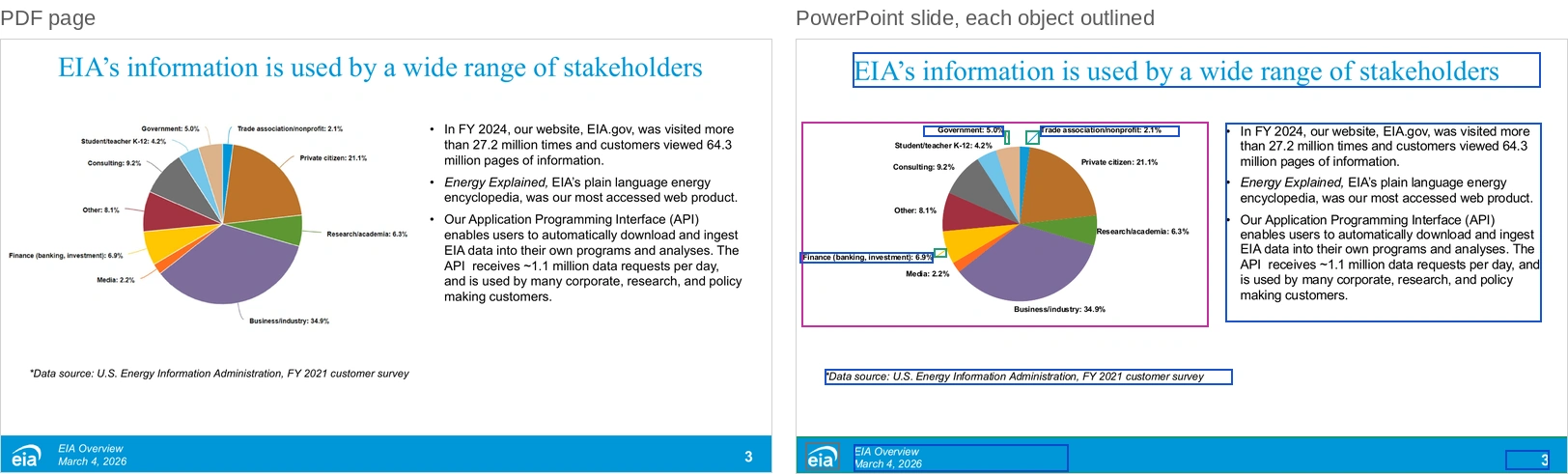
Side by side: the PDF page headlined 'EIA's information is used by a wide range of stakeholders', with a pie chart of ten customer groups and three bullets, and the rebuilt PowerPoint slide with outlines: the pie chart is one native chart object in purple, the title, bullets and source line are text boxes in blue.
Page 2 and the rebuilt slide, rendered in PowerPoint. Purple marks a native chart, blue a text box, green a shape, gray a picture.

Compound built a native PowerPoint pie chart from the ten percentages printed beside the slices, from business and industry at 34.9% to trade associations at 2.1%, in the page’s colors. Three labels that the chart would have drawn over the slices or each other, Government and Trade association at the top and Finance on the left, are separate text boxes with short pointer lines, as on the page. In PowerPoint, the chart’s data opens in its own worksheet, so a new survey year is a matter of typing ten numbers.

Tables come back as tables

The third page is a table of EIA’s 67 energy surveys by category and frequency. Compound rebuilt it as one real PowerPoint table of 10 rows and 9 columns.
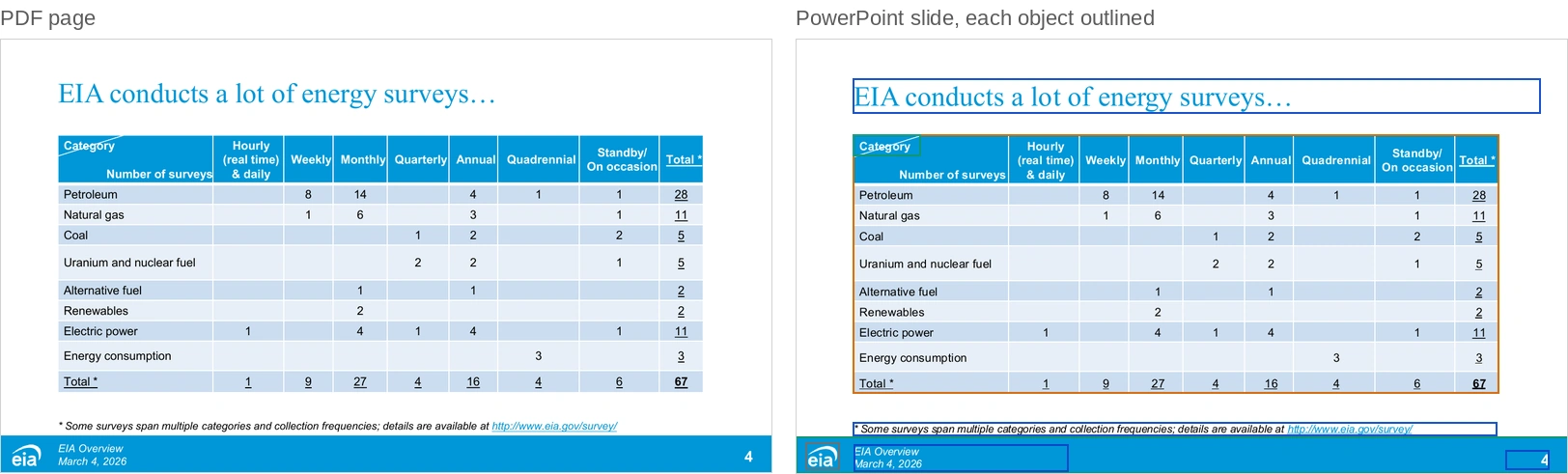
Side by side: the PDF page 'EIA conducts a lot of energy surveys…' with a table of survey counts by category (petroleum, natural gas, coal and others) and frequency, and the rebuilt slide where the whole table is one native table object outlined in orange, with the title and footnote as text boxes.
Page 3 and the rebuilt slide. Orange marks the native table.

The table keeps the header fill, the banded rows, the white borders, the underlined totals and the bold grand total of 67. The footnote’s link to eia.gov/survey still works. To change a count, click the cell and type; to add a survey category, insert a row.

Diagrams and flowcharts become editable shapes

Diagrams are where screenshots hurt most, because they are what people want to reuse. The fourth page, shown at the top of this page, is a diagram of rounded panels, a triangle and arrows. Compound drew each panel, the triangle and every arrow as its own shape, traced from the page where the outline is not a standard PowerPoint shape, and set the text over them as editable text boxes.

The fifth page has a five-step approval flowchart that the PDF holds as a single picture.
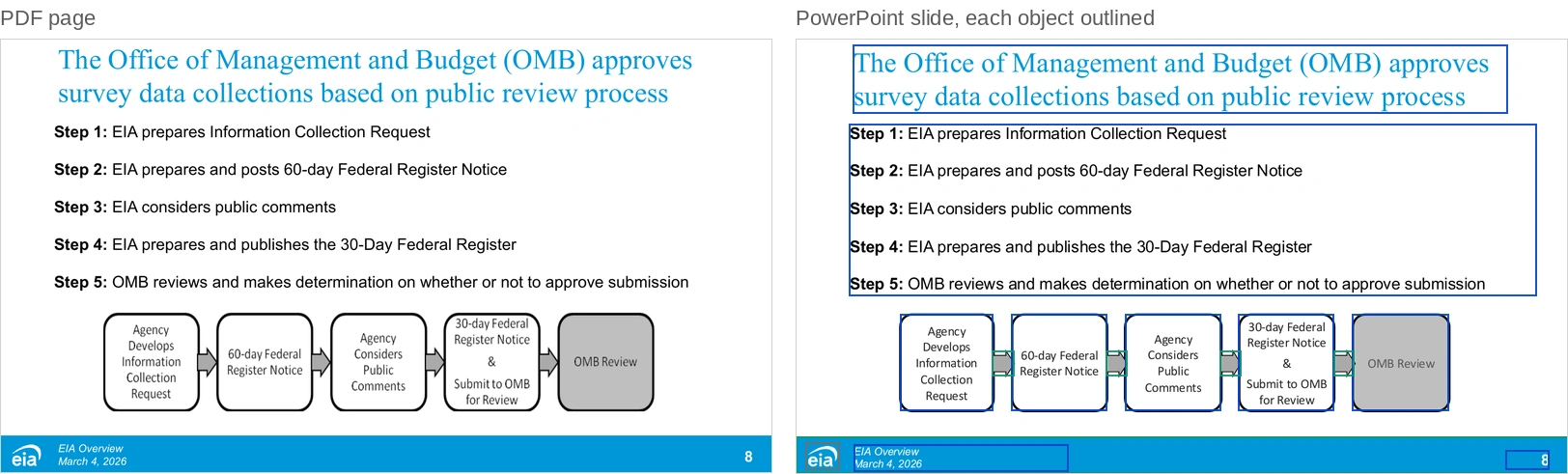
Side by side: the PDF page on how the Office of Management and Budget approves survey data collections, with five numbered steps and a flowchart of five boxes joined by arrows, and the rebuilt slide where the five steps are one text box and each flowchart box and arrow is an outlined shape.
Page 5 and the rebuilt slide. The flowchart was one picture in the PDF; on the slide each box and arrow is a shape.

Compound read the boxes and arrows from that picture and rebuilt the flowchart as five rounded boxes that hold their text and four arrows, with the gray fill on the final step. Moving a step, renaming one or adding a sixth is now ordinary PowerPoint editing.

Line charts rebuilt from the drawing

The last page has a line chart of U.S. dry natural gas production from 2010 to 2050: one history line and ten projection lines. The PDF stores it only as drawn lines, with no numbers behind them.
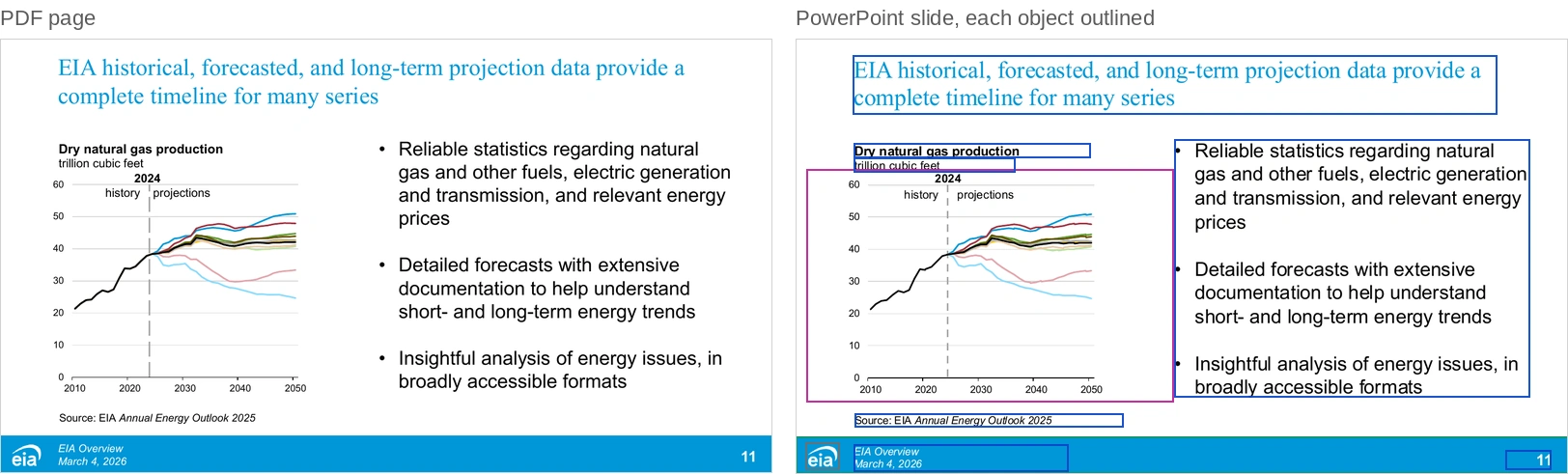
Side by side: the PDF page with a line chart of dry natural gas production in trillion cubic feet from 2010 to 2050, history to 2024 and ten projection lines after, next to three bullets; and the rebuilt slide where the chart, with its 2024 divider and labels, is one native line chart outlined in purple, and the bullets and chart title are text boxes.
Page 6 and the rebuilt slide. The line chart is a native chart with the values Compound measured from the drawing.

Compound measured each line’s value from its position against the axis, to about 0.1 trillion cubic feet, and built a native line chart with the black history line and the ten colored projections. The dashed 2024 divider and its “2024”, “history” and “projections” labels are part of the chart, drawn from hidden data columns, so they stay on 2024 wherever PowerPoint places the plot. It told us plainly that the values are estimates read from the drawing, and since the PDF does not name the ten projections, it labeled them by color. For a chart like this, ask for the source data if you have it; Compound will chart that instead.

Checking the slides against the PDF

Compound does not stop at a deck that opens. It renders each slide, sets it beside its PDF page, and fixes what differs. When it finished, it reported what each slide was built from and what to watch for: the measured chart values, page numbers typed as text, and bullets that may wrap a word differently depending on the viewer.

Some differences got past that check, all in how PowerPoint lays out a chart, which Compound’s own preview draws differently. Opened in PowerPoint, the first version showed a legend on both charts, and the line chart’s dashed divider, then a separate line drawn over the chart, sat at 2020 instead of 2024. Later versions broke the “projections” label over two lines and set one pie label over its slice. We pointed each out in a short follow-up message, four in all, and Compound fixed them: both charts lost the legend, the divider and its labels moved into the line chart, where they stay on 2024, and the labels sit on one line and clear of the pie. The deck you can download is as Compound produced it after those follow-ups.

Insert PDF pages into an existing deck

Often the PDF pages are not meant to stand alone. You have your own deck and want a few pages of a report or a broker’s presentation inside it.

Prompt“Insert pages [3-5] of [file].pdf into [deck].pptx after slide [8]. Rebuild them as editable slides that match the deck: its slide size, theme fonts and colors, and the layout of its other slides.”

Compound converts the pages the same way and builds them to match the deck they are going into, so the new slides use that deck’s fonts, colors and layouts rather than the PDF’s.

What to expect from a PDF to PowerPoint conversion

Compound’s conversion is a close rebuild, not a pixel-perfect import. A PDF records where marks go on a page, not what they mean, so some of what Compound produces is its best reading of the page. In this example the pie chart is a little smaller than on the page, the line chart values are measured estimates, and a few bullets wrap differently.

  • Charts. Common charts come back as native charts. A complex or unusual chart is sometimes drawn as shapes instead, which still look right and can be edited, but have no data sheet behind them.
  • Fine detail. Subtle gradients, map outlines and very fine decoration may differ from the page.
  • Pictures. Photos and logos stay pictures. Everything else on the page becomes text, shapes, tables or charts.

We measure Compound’s conversions on a suite of real professional decks, scoring each converted deck for visual similarity to the PDF, how much of the page’s text it recovers, and how much of the slide is editable rather than pictures.


Download the PDF and the PowerPoint

Source PDF: EIA presentation, six pagesThe six pages Compound converted, from the U.S. Energy Information Administration’s March 4, 2026 presentation, in the public domain. Source: U.S. Energy Information Administration (March 2026).Download · Free Converted deck (PowerPoint)Compound’s six slides from this run, unedited: editable text and shapes, the survey table, and the pie and line charts with their data behind them.Download · Free

FAQ

Can you convert a PDF to an editable PowerPoint?
Yes. Compound rebuilds each PDF page as a PowerPoint slide of native objects: text boxes, shapes, tables and charts you can edit. It uses pictures only for photos and logos, so you do not get a slide that is a screenshot of the page.
Will the tables and charts in my PDF be editable?
Tables come back as real PowerPoint tables you can type in. Charts come back as native charts with their data in a worksheet where Compound can rebuild them, even when the PDF holds the chart only as a picture, as the pie chart in this example shows. When a chart has no printed values, Compound measures them from the drawing and tells you they are estimates. A complex chart is sometimes drawn as shapes instead.
Does the PowerPoint look exactly like the PDF?
Close, not identical. Compound matches the layout, fonts and colors, and checks each slide against its PDF page before it finishes, but a few lines may wrap differently, and fine gradients or map detail may differ. If something is off, say so and Compound fixes it.
Can Compound add PDF pages to a deck I already have?
Yes. Give it the PDF and your deck and say where the pages go. It rebuilds them as editable slides in that deck’s size, fonts, colors and layouts.
Can I convert a PDF to Excel instead?
Yes. For tables and financial statements, the PDF to Excel example spreads audited statements from PDF into a workbook, every figure cited to its page and tied out.
CoatueCentri ConsultingAvra783 Capital PartnersOctahedron CapitalArix ResearchCoatueCentri ConsultingAvra783 Capital PartnersOctahedron CapitalArix ResearchCoatueCentri ConsultingAvra783 Capital PartnersOctahedron CapitalArix Research

See this workflow on your own deal