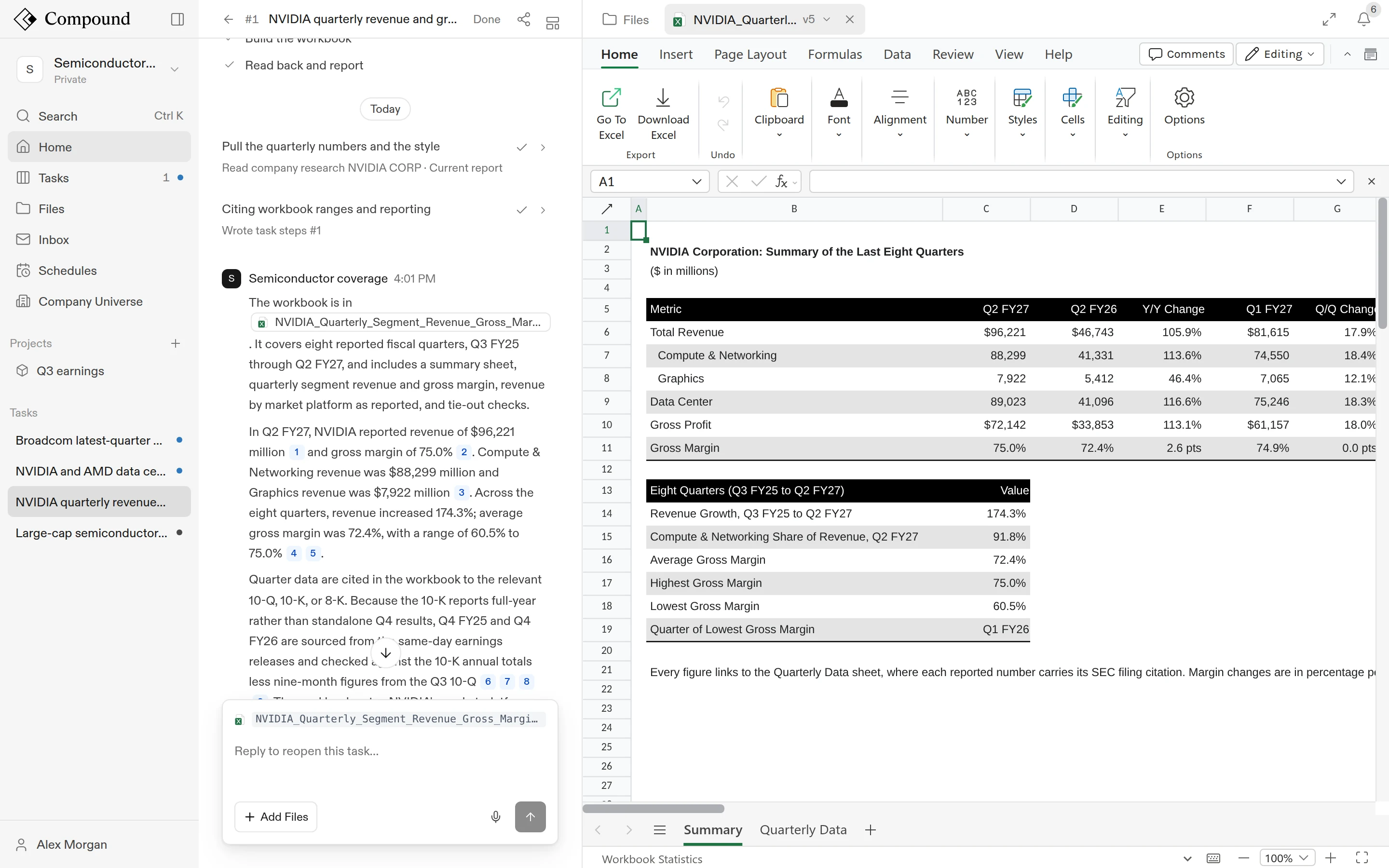
In a workbook, the agent can build models from scratch, write and audit formulas, create charts, restructure sheets, and pull tables out of PDFs and filings into clean Excel structures. You can watch it work, edit the workbook yourself in the same editor, and roll back to any earlier version.
Ask for a workbook
Upload an existing spreadsheet (.xlsx, .xlsm, and others; see Files) or ask the agent to create one. .csv and .tsv files open as read-only tables, so ask the agent to turn one into a workbook. Then describe the work the way you would to an analyst:
- “Pull the income statement from Acme’s last three 10-Ks into a clean three-statement model.”
- “Add a sensitivity table for revenue growth and EBITDA margin on the DCF sheet.”
- “Rewrite the COGS formulas to reference the assumptions block.”
Larger requests run as a task. The workbook opens beside the task while the agent works.
Watch the agent edit
When the agent edits a workbook you have open, its changes to values, formulas, formats, sheets, rows, and columns appear in place as it makes them. The file’s tab shows a dot while the agent is writing. Any edit you’re in the middle of is kept.
Point the agent at specific cells
Select a range in the workbook and click Add to message above the chat box. The range (for example, DCF!B5:F40) is attached to your next message, so you can say “make these formulas reference the assumptions sheet” without describing where they are. Click × to remove it.
Edit the workbook yourself
The workbook opens in a full spreadsheet editor with a ribbon, formula bar, and sheet tabs. Edit cells, formulas, and formatting directly; changes save automatically a couple of seconds after you stop typing. You need edit access to the agent, and you must be on the latest version.
Very large workbooks may show “This workbook is too large to preview”, with options to Download it or Open anyway.
Comment on cells
Right-click a cell or range and choose Ask Compound to leave a comment on it, for example “This should use the diluted share count.” The agent picks up the comment, fixes the cells, replies in the thread, and resolves it. See Collaboration.
Citations
Numbers the agent pulled from a source carry a citation. Click a cited cell to see where the number came from and open the source: a filing page, a transcript passage, or another workbook’s cells.
Versions
Every edit, yours or the agent’s, creates a new version. Click the file name and version number on the workbook’s tab, then pick from Versions to view an earlier one. Older versions are read-only.
Download and open in Excel
- Choose Download from the file’s tab menu to get the workbook as it’s stored.
- Click Download Excel on the spreadsheet’s Home tab, or choose File > Create a Copy > Download a Copy, to download an
.xlsxwith the agent’s citations kept as cell notes. - If your organization allows it, you can also open the latest version in desktop Excel with Home > Go To Excel or File > Info > Open in Desktop. With Compound for Excel installed, you can keep working with the agent from Excel.
.xls and .xlsb files open read-only. Download gives you the original file, and Download Excel saves an .xlsx copy.
Tips for large workbooks
- Be specific about scope. “Recalculate revenue for the FY27 column” is easier to act on than “fix revenue.”
- Select instead of describing. Attaching
B5:F40is more reliable than typing “the second block on the Assumptions sheet.” - Split big jobs. “First build the structure, then we’ll populate it” beats a single 500-word request.
What to read next
- PDFs: extract tables from a PDF into a workbook.
- Files: versions, sharing, and supported file types.
- Tasks and the chat: how requests become tasks.