Compound can build PowerPoint decks from your source documents and data. The agent lays out slides, writes headlines and bullets, builds charts from a workbook, and writes speaker notes. You can edit slides yourself in the same editor, comment on shapes for the agent to fix, and roll back to any earlier version.
Draft a deck
Point the agent at the source material, describe the audience, and ask for the deck. The agent builds the slides directly, so you iterate on real slides rather than an outline.
“Draft a 10-slide investor update from this memo and the Q3 workbook. Audience is the board. Lead with the headline numbers, then segment performance, then guidance.”
Compound accepts .pptx and .ppt files. The deck opens beside the task while the agent works on it; the file’s tab shows a dot while the agent is writing.
Use a reference deck for your house style
The most reliable way to get a deck that looks like yours is to upload an existing deck as a reference and ask the agent to reuse its slides. Layouts, fonts, colors, and master slides stay intact, and only the content changes.
“Use house_template.pptx as the reference. Pick the slides that best fit a Q3 board update — title, segment performance, KPI table, guidance — and replace the content with the numbers and narrative from this memo and the Q3 workbook. Keep each slide’s formatting.”
The more specific you are about which reference slides to use (“use slide 4’s two-column layout for the segment comparison”), the closer the result.
Edit slides
Ask for changes slide by slide:
- “Rewrite slide 3’s headline to lead with the EBITDA beat.”
- “Move slide 7 to be the second slide.”
- “Add a slide between 4 and 5 covering working-capital changes.”
- “Make the chart on slide 6 a bar chart instead of a line chart.”
You can also edit slides yourself: open the deck from Files or from the task, and edit text and shapes directly. Changes save automatically. You need edit access to the agent, and you must be on the latest version.
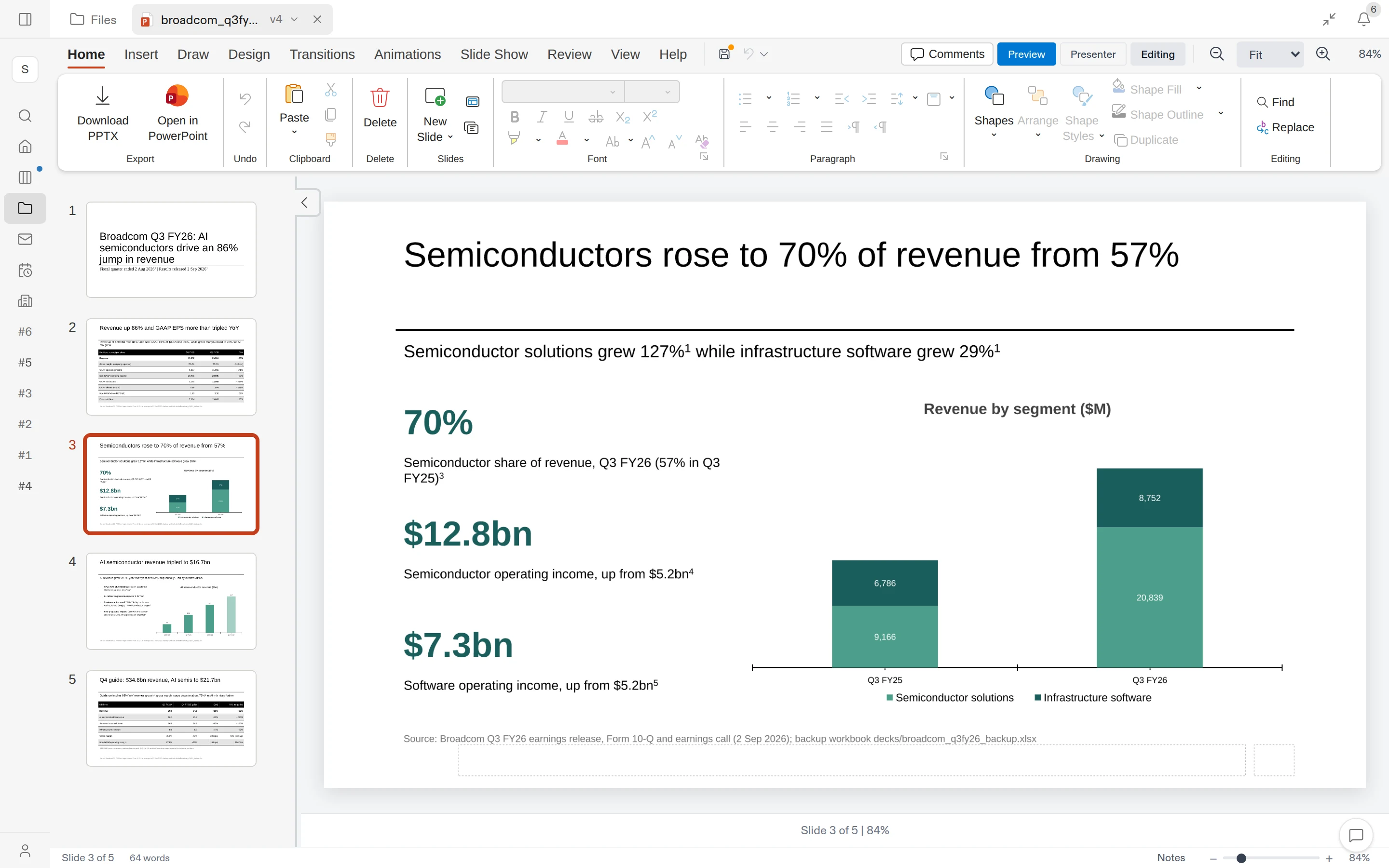
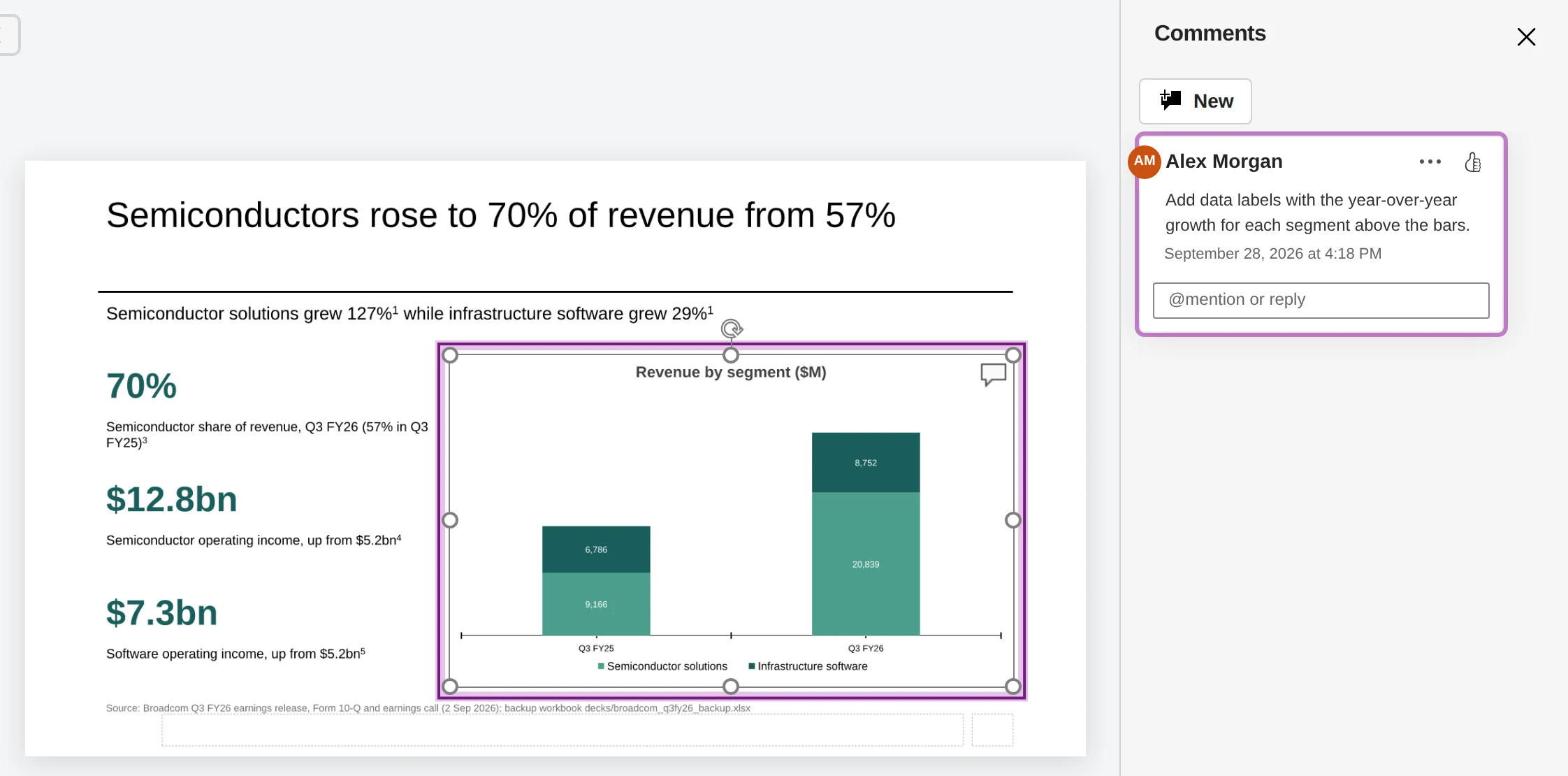
Comment on a slide
Right-click a shape and choose Ask Compound to leave a comment on it, for example “Shorten this to three bullets.” The agent makes the change, replies in the thread, and resolves it. See Collaboration.
Charts from a workbook
When the deck and a workbook are in the same agent, the agent can build charts from cell ranges: “Add a chart on slide 4 showing the revenue bridge from the Q3 workbook’s Summary sheet.”
The agent creates a native PowerPoint chart you can edit in PowerPoint, with no link back to the workbook. If the workbook changes later, ask the agent to rebuild the chart from the updated data.
Speaker notes
Ask for notes on every slide or on specific ones: “Write speaker notes for slides 3-6 emphasizing the year-over-year story.” Notes are written into each slide’s notes and included when you download the deck.
Versions
Every edit creates a new version. Click the file name and version number on the deck’s tab, then pick from Versions to view an earlier one. Older versions are read-only.
Download
Download from the slide editor (citation markers become links), or choose Download from the file’s tab menu to get the file as it’s stored. Decks download as .pptx with shapes, charts, layouts, and speaker notes preserved. If your organization allows it, you can also open the deck in desktop PowerPoint from the editor.
What to read next
- Workbooks (Excel): the source for most charts and numbers in a deck.
- Documents (Word): the same flow for written memos.
- Tasks and the chat: how requests become tasks.