Company Universe is where an agent keeps track of companies. You can browse and screen companies, open a company’s profile, financials, and documents, and subscribe the agent to the companies you follow. When a subscribed company reports earnings, files with the SEC, or has another event you chose, the agent is alerted and does the work you asked for. News is opt-in.
Click Company Universe in the left sidebar to open it for the current agent.
Find a company
Type a company name or a screen into Search or screen companies… at the top. Click a company to open its profile. Depending on what data is available, the profile has these tabs:
- Overview
- Documents: filings, transcripts, presentations, and press releases
- Financials
- Estimates
- Feed: news
- Fundraising: shown when the company has funding rounds
Views
The universe opens on All companies. Type a screen into the search box, or use Columns & filters (the sliders icon at the top right) to pick columns and filters, then click Save view. A saved view keeps its companies, its columns, and the screens you typed in the box. Filters set only in the Columns & filters panel or in a column header aren’t saved. Click New view to start a new one. Saved views are shared by everyone in the agent. Removing a view doesn’t change which companies are subscribed.
Subscribe to companies
Each agent has one list of Subscribed companies. To add a company, click the star on its row in any view, or open the Subscribed view, type the company’s name, and click Add to Subscribed next to it. You can also highlight it and press Enter. To remove it, click the star again.
You can also ask in the chat: “Follow NVDA, AMD, and AVGO and write me a one-page recap after each earnings call.”
Anyone who can edit the agent can change its subscribed companies.
Choose what wakes the agent
In the Subscribed view, click the entry in a company’s Event trigger column to choose which events alert the agent:
- Earnings: transcripts, slides, and releases.
- Filings: by form type, grouped as Annual Report, Quarterly Report, Current Report, Proxy Statement, Insider Transactions, Ownership Stakes, Registration & Offerings, and Other Disclosures.
- Other events: for example conferences, annual meetings, and M&A.
- News: off by default.
- Prediction markets: Polymarket odds on the company; off by default.
In the box under the list (What matters about this company’s events), tell the agent what matters, for example “Compare gross margin to our model and flag any guidance change”. Then click Save triggers.
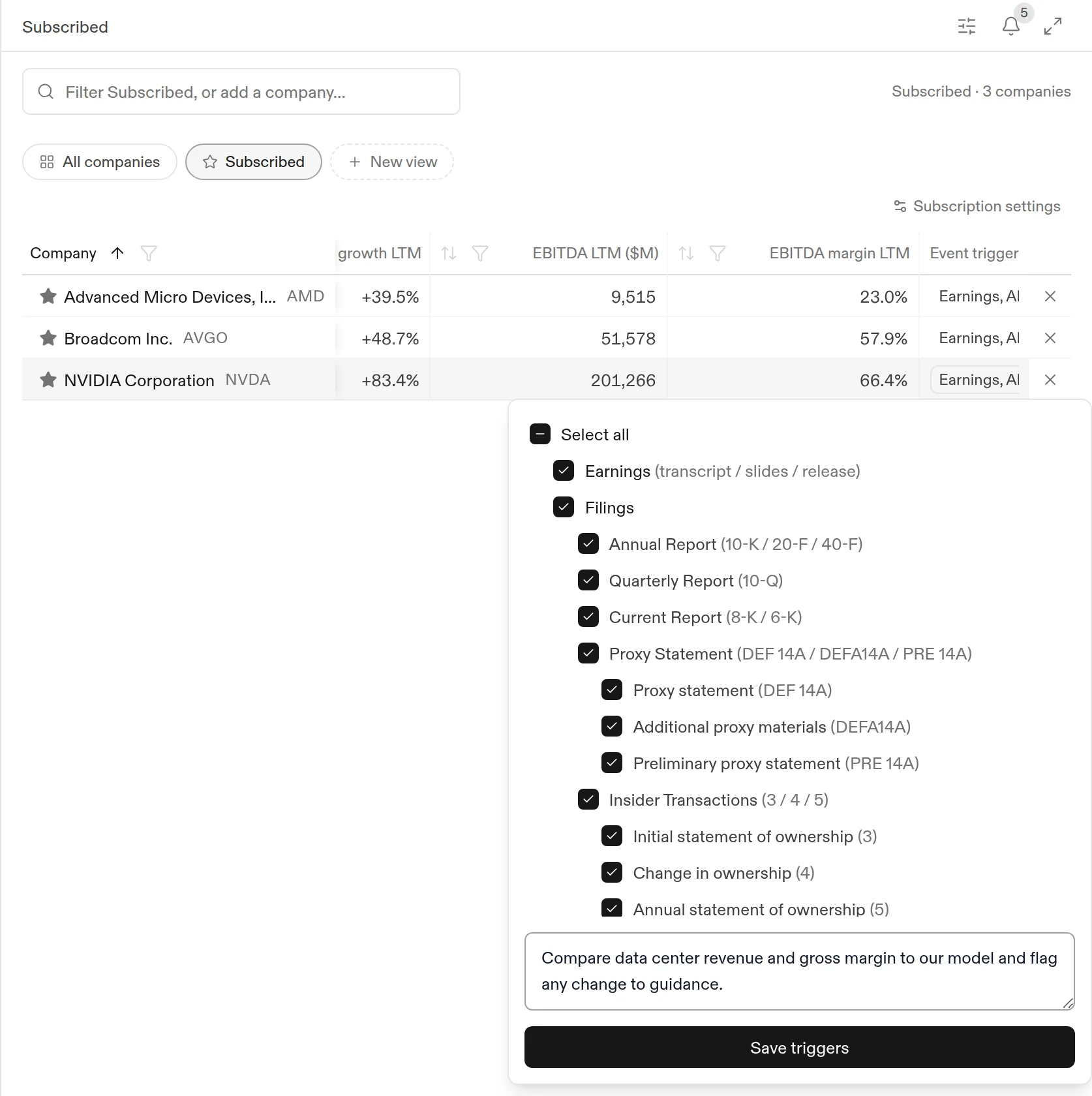
Subscription settings
Click Subscription settings in the Subscribed view to set:
- Alert frequency: how often this agent may be alerted. Choose As it happens (the default), At most hourly, At most daily, or At most weekly.
- Deliver events: turn this off to keep the companies but stop the alerts.
The same dialog can apply one set of event triggers to every subscribed company. It’s available once at least one company is subscribed.
What happens when a company reports
When a subscribed event arrives, the agent is alerted in the background. It reads the new filing, transcript, or article, follows your notes, and starts a task for the work. Several events that arrive together are usually handled in one task. The result shows up on the agent’s Tasks page and on Home, and you get a notification.
Company Universe replaces the Watchlist from earlier versions of Compound. Subscriptions belong to an agent, so each agent can follow its own set of companies.
What to read next
- Schedules: run the same instruction on a fixed cadence instead of on company events.
- Data sources: the public data the agent can read.
- Tasks and the chat: follow the tasks company events start.