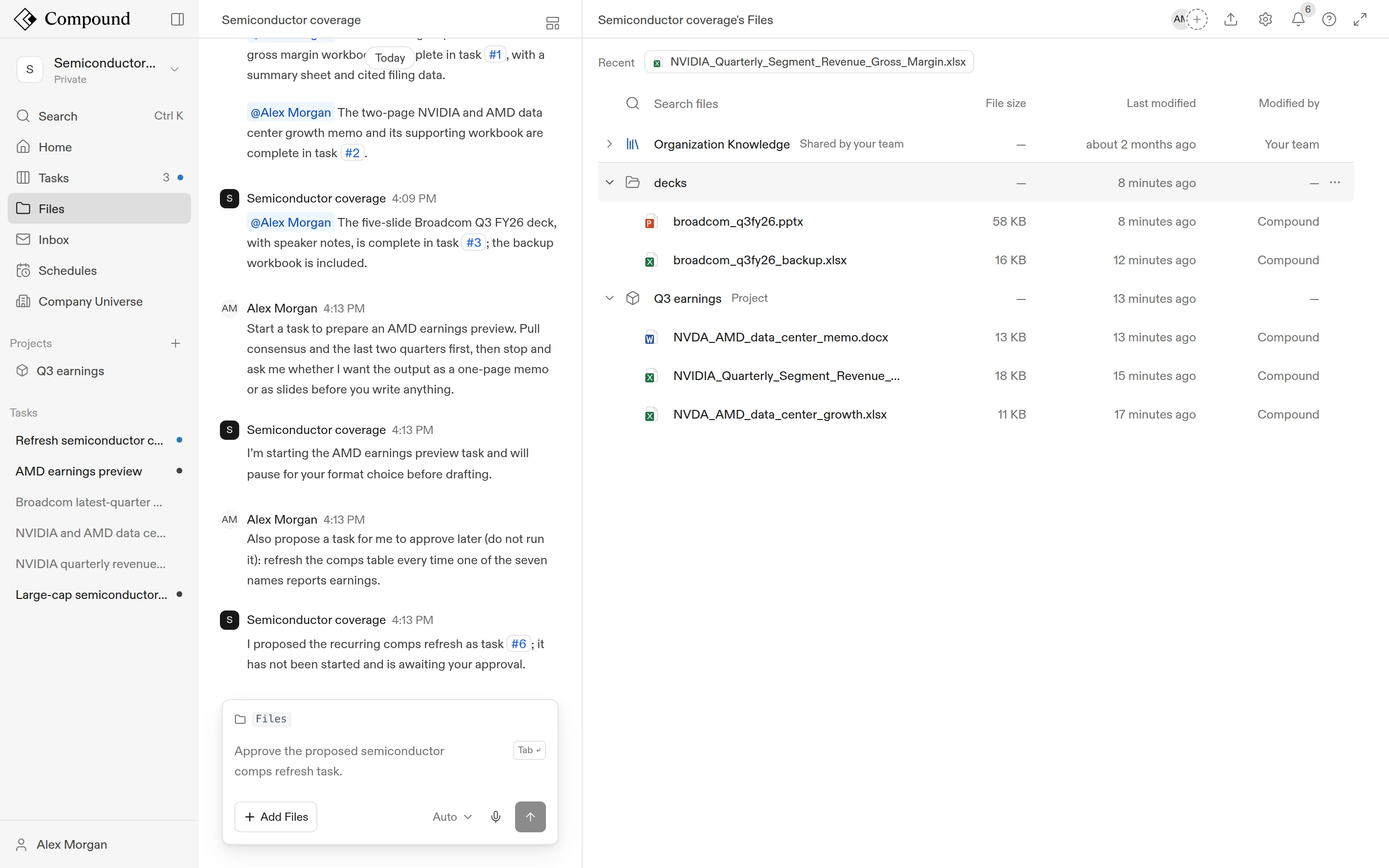
Each agent has its own Files: everything you upload and everything the agent creates or edits. Every task in the agent can use these files, so you upload a file once and refer to it in any request. Click Files in the left sidebar, or press ⌘B / Ctrl+B from Tasks, to open them.
Upload files
- Drag and drop files or whole folders onto the Files page, or onto a folder to upload into it.
- Click the upload icon (Upload) at the top of Files to open Add Files, then choose Upload Files or Upload Folder. You need edit access to upload.
- Drop files onto the chat to attach them to your next message. They’re saved in an
uploadsfolder.
At the top level of Files, Add Files also offers Add from Google Drive.
Supported file types
| Kind | Extensions |
|---|---|
| Spreadsheets | .xlsx, .xlsm, .xltm, .xlsb, .xls, .csv, .tsv |
| Documents | .docx, .doc, .docm, .dotx, .dotm |
| Presentations | .pptx, .ppt |
| PDFs | .pdf |
| Text and data | .txt, .md, .json, .xml, .yaml, .html, and common code files |
| Images | .png, .jpg, .gif, .webp |
| Audio and video | common formats such as .mp3, .wav, .mp4, .mov |
| Archives and email | .zip, .tar, .gz, .7z, .rar, .eml, .msg |
Compound unpacks archives and emails. When you upload a .zip or other archive, an .eml or .msg email, or a PDF portfolio, Compound extracts its contents into a folder next to it, named after the file (deal.zip → deal). An email’s body and each attachment become separate files. Once an archive is fully extracted, the original archive is removed; emails and PDFs are kept. While an archive or email is being unpacked, an amber dot appears next to its name. Hover over it to see “Expanding archive…”.
Older .xls and .xlsb workbooks open read-only. Download in the tab menu gives you the original file, and Download Excel in the spreadsheet saves an .xlsx copy. Word .dotm templates can be uploaded but can’t be displayed (“No preview available for this file type”); download them to open in Word. .csv and .tsv files open as read-only tables.
Organize files
- Use Search files to filter by file name across every folder.
- Sort by File size, Last modified, or Modified by. Modified by shows You, a teammate’s name, or Compound when the agent made the change.
- Right-click empty space and choose New Folder.
- Drag a file onto a folder to move it.
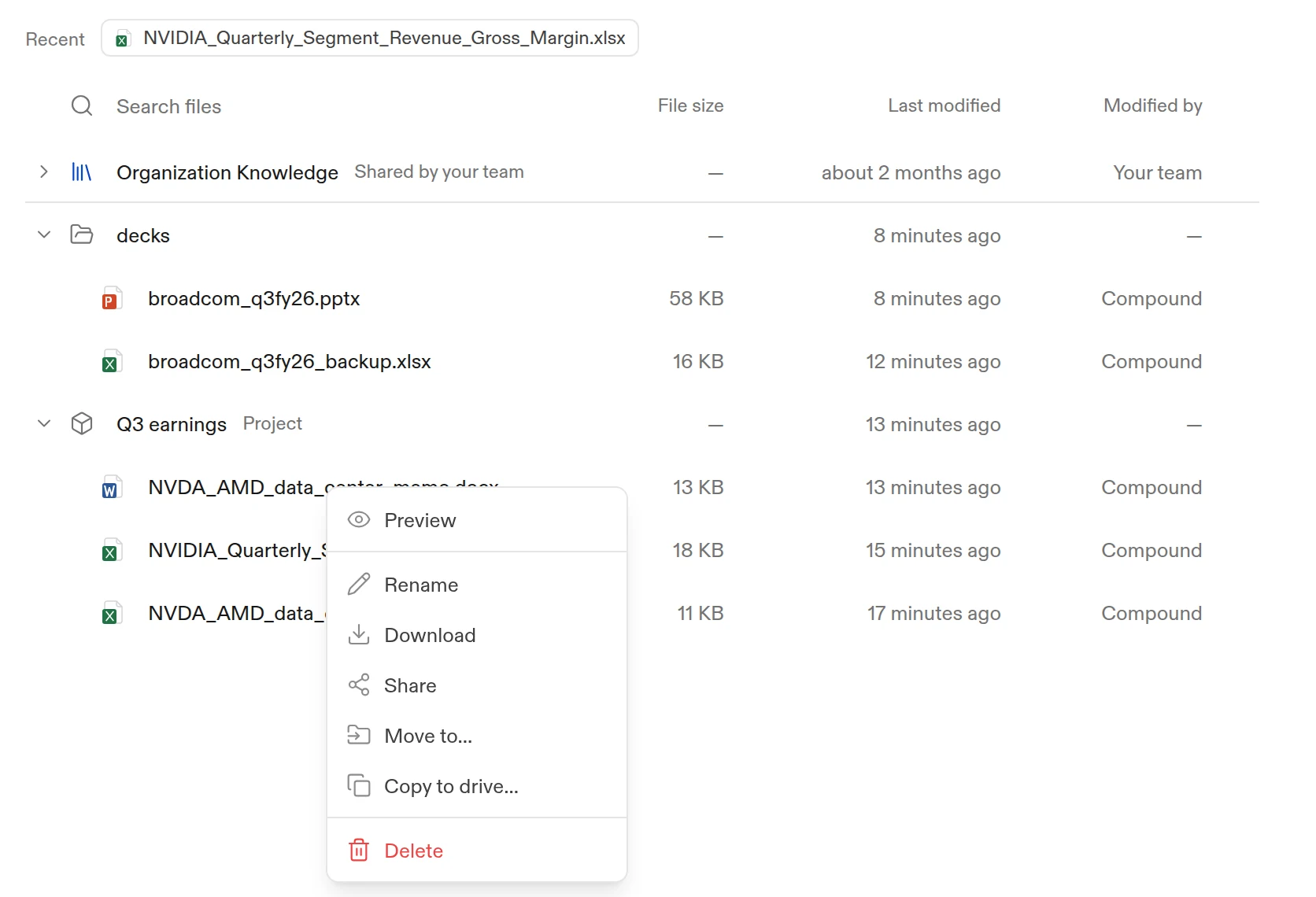
Right-click a file, or use its ⋮ menu, for Preview, Download, and Copy to drive…; with edit access you also get Rename, Share, Move to…, and Delete. Folders can be renamed, moved, copied, deleted, or downloaded as a zip. Select several files with Cmd/Ctrl-click or Shift-click to download, move, or delete them together. After a delete, an Undo option appears briefly, so you can reverse a delete made by mistake.
Special folders
- Memory: what Compound has learned from your work, such as conventions, formats, and workflows. It appears once Compound has learned something. Compound keeps these files current. Edit any of them to correct what it remembers.
- Organization Knowledge: files your organization shares with every agent, managed in Settings > Organization > Organization Knowledge.
- Project folders: one for each project in the agent.
A file a running task is working on shows a status dot. Opening it takes you to that task.
Open and edit a file
Double-click a file to open it. Files open in tabs, so you can keep several open and switch between them. A pulsing dot on a tab means the agent is writing that file now, and its changes appear as it works. A colored dot marks a file you haven’t opened yet.
What you can do depends on the file type:
| Type | In Compound |
|---|---|
| Excel workbooks | Full spreadsheet editor: edit cells, formulas, and sheets; select cells to reference them in the chat; comment |
| Word documents | Document editor: edit text and formatting |
| PowerPoint decks | Slide editor with thumbnails: edit slides; comment |
| PDFs | Read, zoom, and select text to ask about it |
| Markdown | Edit directly |
| CSV and TSV | Read-only table |
| Text, images, audio, video | View |
Your edits save automatically a couple of seconds after you stop typing. You need edit access to the agent to change files. With view-only access, a file shows View only.
On desktop, click the expand icon (Full screen) to give the file the whole window, and the same button (Dock) to go back.
See Workbooks, Documents, Presentations, and PDFs for details on each type.
Versions
Every time you or the agent change a file, Compound saves a new version. Click the file name and version number (for example, v3) on the file’s tab, then choose from Versions to view an earlier version. An older version shows “Viewing older version” and is read-only. Switch back to the latest version to make changes.
The same menu has Download and Delete artifact.
Citations
When the agent states a fact from a source, it adds a small numbered citation. Hover over or tap a citation to see the source and the quoted passage. Click it to open the source in a preview pane, scrolled to the cited cell range, PDF page, or passage. Web pages and other online sources open in a new browser tab.
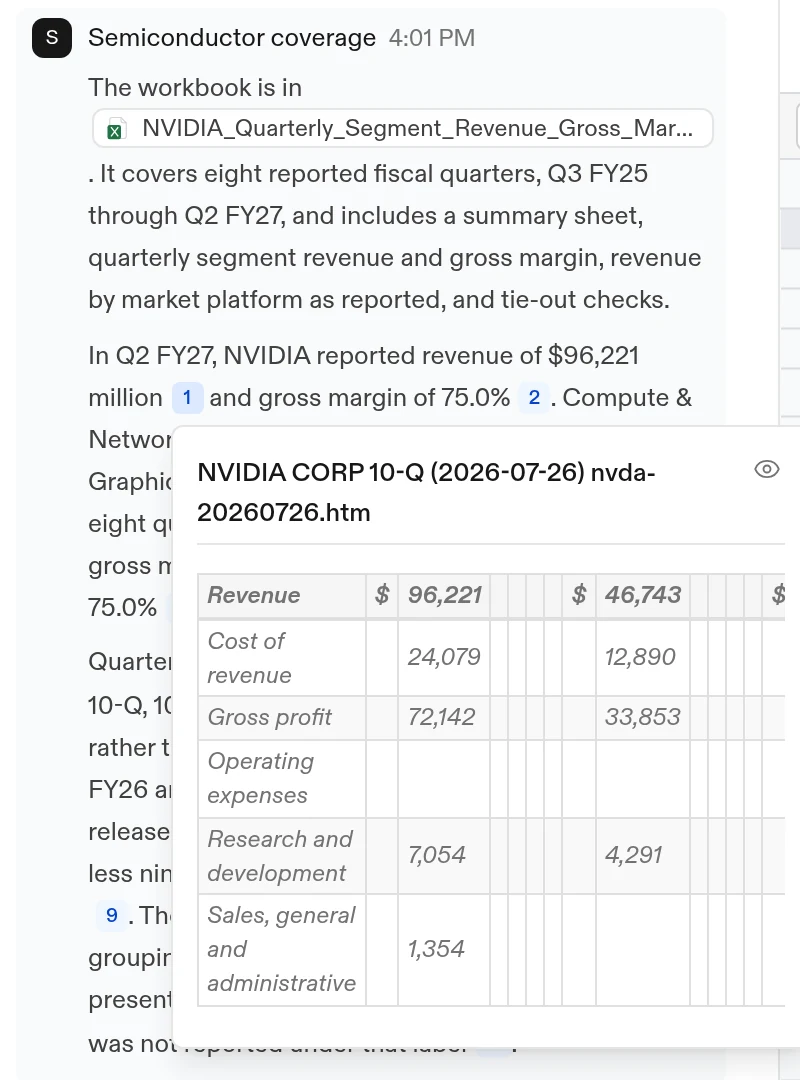
Citations the agent puts inside a workbook, document, or deck work the same way. When you download a file from its editor, citations become cell notes in Excel and links in Word and PowerPoint.
Comments
In Excel workbooks and PowerPoint decks, you can leave a comment for the agent on the content itself. Right-click a cell range or a shape and choose Ask Compound, then write what you want changed. The agent picks up the comment, makes the fix, replies in the thread, and resolves it. Replying to a resolved comment reopens it. See Collaboration for more.
Share a file
If you have edit access, choose Share on a file to share that file on its own, read-only, without sharing the whole agent. Use Add people to share it with specific people, or change General access. Once the file is shared, Copy link copies its link.
What to read next
- Workbooks (Excel): build and edit Excel models with the agent.
- Collaboration: share an agent and work on files with teammates.
- Data sources: data the agent can use without an upload.