A schedule gives an agent the same instruction on a cadence you choose, such as a morning market recap every weekday, a portfolio review every Monday, or a KPI refresh on the first of each month. Each time a schedule runs, the agent receives its instruction and usually starts a task for it, or reopens the task from the previous run. The task is marked From schedule with the schedule’s name. The result appears on the agent’s Tasks page and on Home like any other task.
Schedules belong to one agent. To watch companies and react when they report, use Company Universe instead.
Create a schedule
Open Schedules
Click Schedules in the left sidebar, then click New schedule.
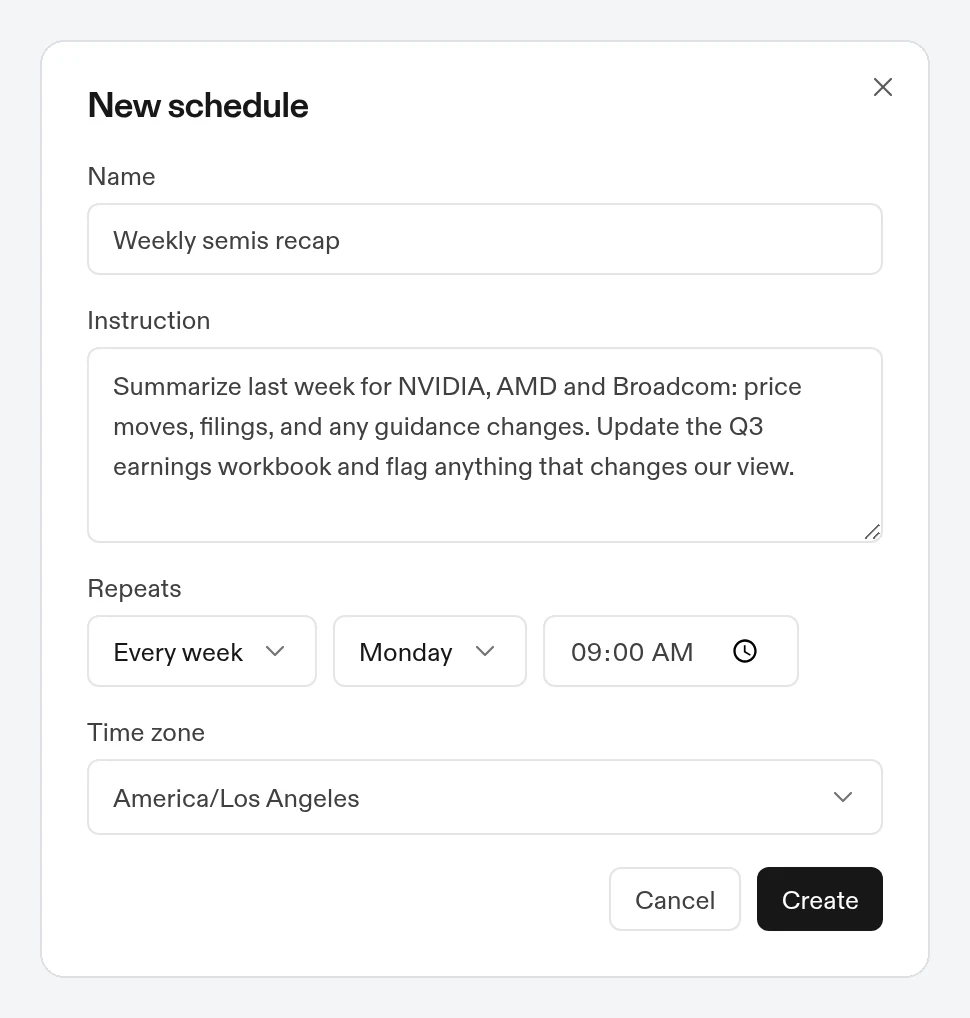
Name it and write the instruction
Give the schedule a Name (for example, “Weekly portfolio review”) and write the Instruction, which is what the agent should do each time the schedule runs. Write it the way you would write a chat request, including which files to use and what to produce.
Pick the cadence
Under Repeats, choose:
- Every day
- Every weekday (Monday through Friday)
- Every week, on a day you pick
- Every month, on a day from 1 to 31 (months without that day are skipped)
Then set the time. The default is every day at 9:00.
Check the time zone
Time zone defaults to your browser’s time zone. Search to pick another one.
Click Create
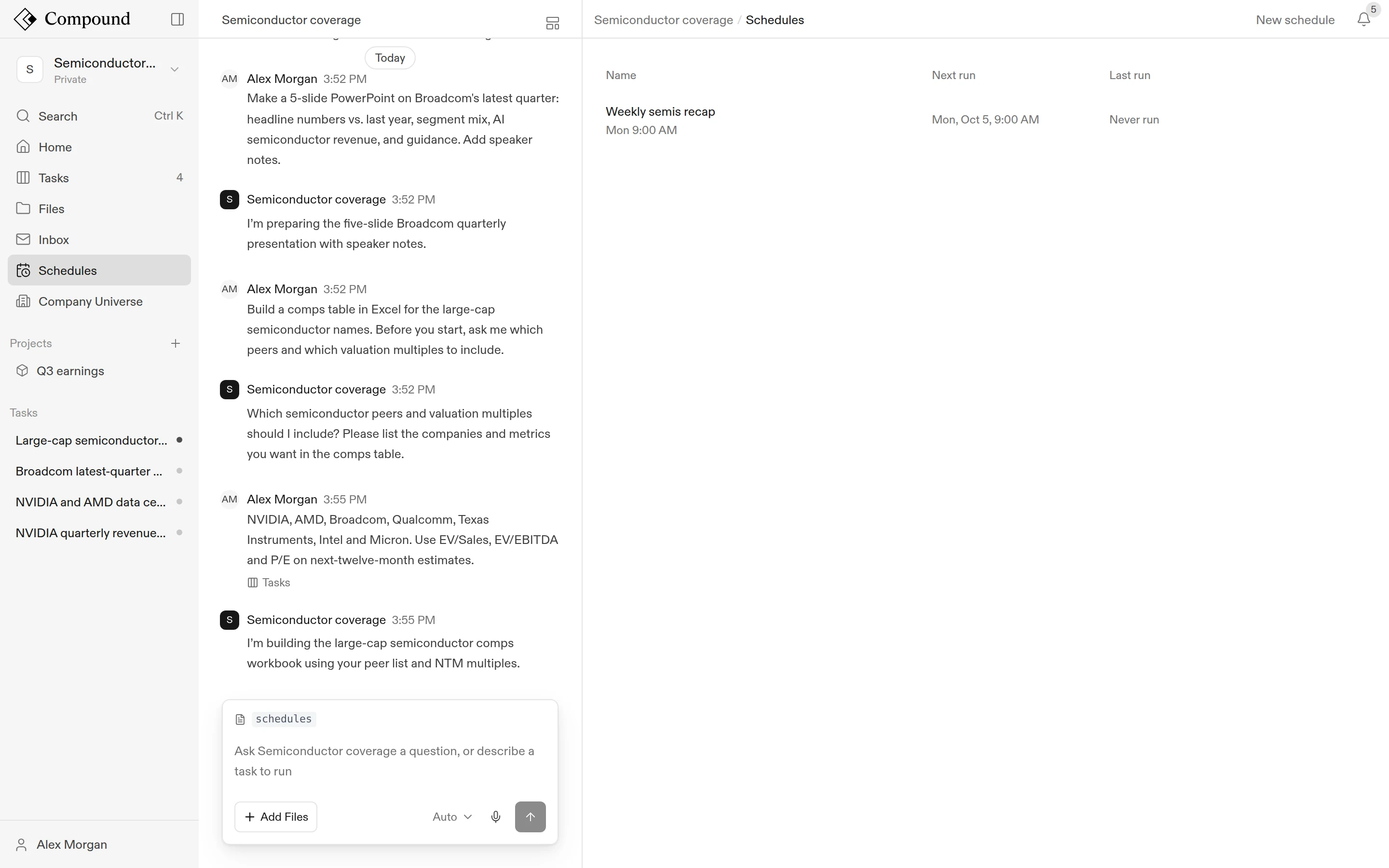
The schedule appears in the list with its next run time.
You can also ask the agent in the chat to create a schedule, for example: “Every Monday at 8am, update the portfolio tracker with last week’s prices”. A schedule runs at most once an hour.
The schedule list
The Schedules page lists each schedule with:
- Next run: the date and time it runs next, or Paused.
- Last run: a link to the task it started last time, or Never run.
Edit, pause, or delete a schedule
Click a schedule’s name to open Edit schedule. From there you can:
- Change the name, instruction, cadence, or time zone, then click Save.
- Click Pause to stop it without deleting it, and Resume to start it again.
- Click Delete to remove it. Tasks the schedule already started are kept.
A schedule the agent created with a cadence the picker doesn’t offer shows as Custom. Choosing another option replaces that cadence.
What to read next
- Tasks and the chat: how the tasks a schedule starts work.
- Company Universe: follow companies and act on earnings, filings, and news.