Compound is an AI agent for financial analysis. You describe a piece of work in the chat, and the agent runs it as a task. It reads your files and public data, builds or edits Excel workbooks, Word documents, and PowerPoint decks, and reports back. Tasks keep running in the background, even after you close the tab. The results, and any questions for you, show up on Home.
The vocabulary
- Agent: your AI teammate and the workspace it works in. Each agent has its own chat, tasks, and files. Everyone starts with a personal default agent named Frankie. You can create more agents, for example one per deal or client, and share them with teammates.
- Task: one piece of work the agent is doing for you, numbered per agent (#1, #2, …). A task has a brief, an optional plan, a conversation, the files it produced, and a state such as Running, Needs input, or Done.
- Project: a group of related tasks and files inside one agent, such as “Q3 earnings” or “Acme diligence”. A project has its own folder in the agent’s files.
- Files: everything you upload and everything the agent creates or edits, including workbooks, documents, decks, PDFs, CSVs, and images.
Run your first task
Sign in
Visit getcompound.ai and sign in. You land on Home for the agent you last used in this browser (on a phone, its Chat). At first, that is Frankie. On a computer, a welcome dialog on your first visit offers a one-minute tour (Take the 1-minute tour). New accounts first answer a short questionnaire about their role, sectors, and work.
Add files (optional)
Drag files onto the chat, or open Files in the left sidebar and click the upload icon (Upload) at the top of the page. You can skip this step. The agent can pull SEC filings, earnings transcripts, financials, and web results on its own.
Describe the work in the chat
The chat sits next to every page. Type a question or a piece of work into the box that reads “Ask Frankie a question, or describe a task to run” and press Enter. For example: “Pull the income statement from Acme’s latest 10-K into a clean Excel model.”
Follow the task
Quick questions are answered in the chat. Larger requests become a task, which appears under Tasks and in the sidebar while it runs. Click it to see its plan, its steps, and the files it writes. If the agent needs something from you, the task moves to Needs input and you get a notification.
Open the results
When the task is Done, its files are listed on the task and under Recent files on Home. Click a file to open it in the app, edit it, or download it.
How the app is laid out
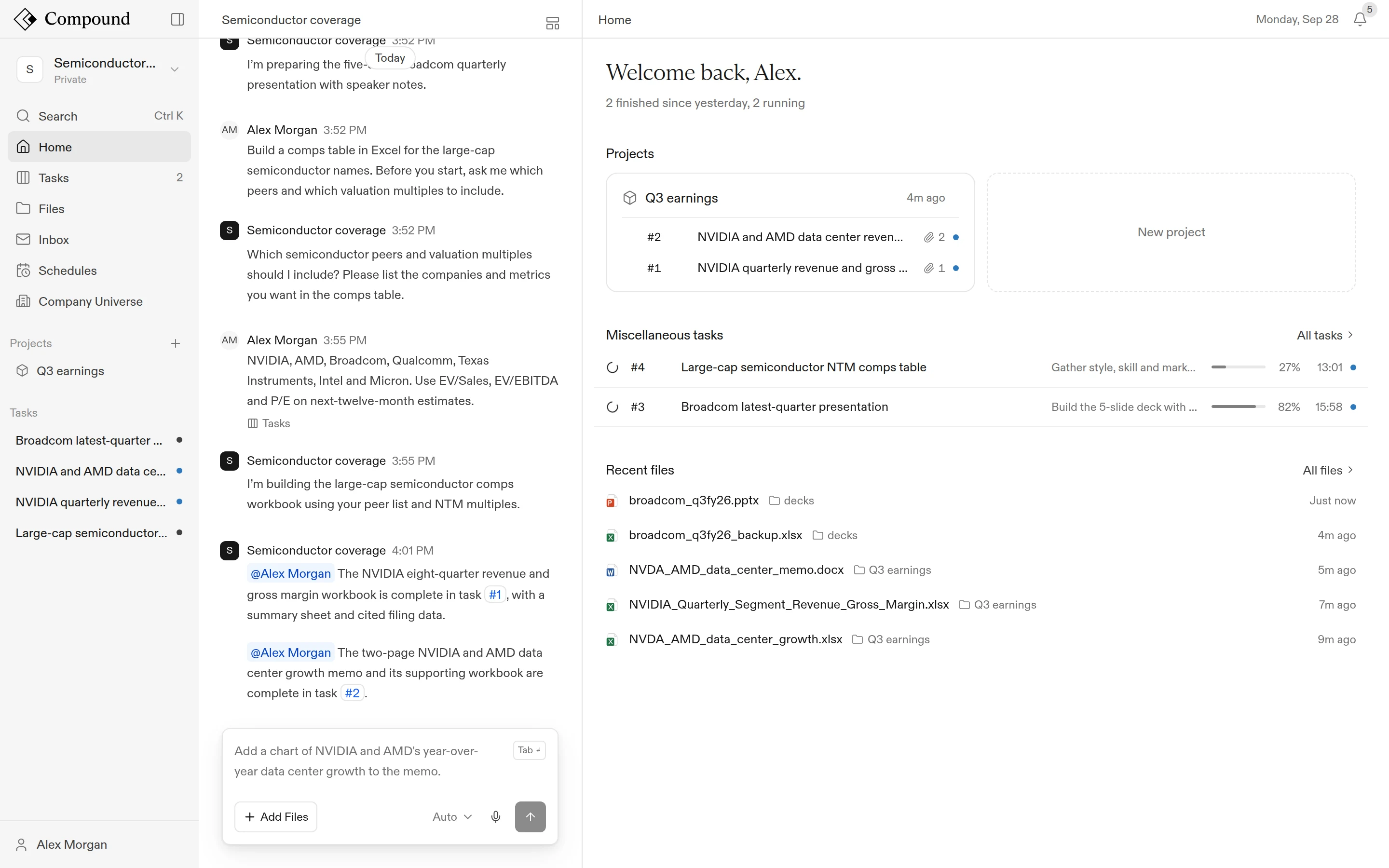
The left sidebar holds everything for the current agent:
- Agent switcher (top): the current agent’s name. Click it to switch agents, create a New agent, or open Agent settings.
- Search: search the current agent’s tasks, folders, and files (⌘K on Mac, Ctrl+K on Windows).
- Home: what finished, what is running, and what needs you; your projects; recent files.
- Tasks: every task, grouped as Proposed, Running, Needs input, and Done.
- Files: the agent’s files and folders.
- Inbox: emails the agent has received and sent.
- Schedules: instructions the agent runs on a repeating cadence.
- Company Universe: companies, filings, and the companies the agent watches.
- Projects: projects with recent activity, and + to create one.
- Your name (bottom): Settings, Shared, Take the tour (on a computer), Appearance, Language, Keyboard shortcuts, and Log out.
On a computer, the bell in the top right opens Notifications in two groups: Needs you (questions, approvals, mentions, comments and replies, access requests) and Updates (new and finished tasks, resolved comments).
Keyboard shortcuts
| Shortcut | Action |
|---|---|
| ⌘K / Ctrl+K | Search tasks, folders, and files |
| ⌘B / Ctrl+B | Switch between Tasks and Files |
| ⌘\ / Ctrl+\ | Float or dock the chat |
| ⌘/ / Ctrl+/ or ? | Show keyboard shortcuts |
| Enter / Shift+Enter | Send / new line |
| Alt+Shift+D | Dictate (hold to talk, tap to toggle) |
Where you can use Compound
- The web app at getcompound.ai. On a phone, the app switches to Chat, Tasks, Files, and More tabs.
- Email: each agent has its own email address. See Email.
- Excel: open a workbook in desktop Excel with Compound for Excel installed to work on it with the agent.
What to read next
- Tasks and the chat: how to give the agent work and follow it.
- Agents and projects: create agents, organize work into projects, and choose what each agent can do.
- Files: upload, organize, open, and edit files.