Every agent has its own email address. Email it a request, forward it a filing or a research note, or Cc it on a thread. The agent handles the email the same way it handles a chat message: it replies on the thread, starts tasks for real work, and emails you the results when they’re done.
Find an agent’s address
- Frankie, your default agent, uses frankie@getcompound.ai. Send from the email address you sign in to Compound with, so Compound knows the email is for your Frankie.
- Every other agent has its own address at
team.getcompound.ai, starting with the Email name chosen when the agent was created.
To see an agent’s address, click Inbox in the left sidebar. The address is shown at the top of the page. Click it to copy it.
What happens when you email an agent
- The email appears in the agent’s Inbox.
- The agent reads the thread. For a quick question, it replies directly.
- For real work, it starts one or more tasks and replies with the task numbers and what it will deliver.
- When the tasks finish, it replies on the same thread with the results. Files are attached when they fit in the email. Larger files are named in the reply and saved in the agent’s Files.
Keep replying on the same thread to follow up. The agent ignores auto-replies and out-of-office messages.
Attachments stay with the email until the agent needs them. When it uses one, it saves it to the agent’s files.
When email is useful
- Forwarding for analysis: forward a research note, transcript, or filing and ask a question in the body.
- Looping the agent into a thread: Cc the agent on an existing thread and ask it to do something.
- Working away from your desk: send a request from your phone and read the results when they arrive.
The Inbox
Inbox in the left sidebar lists every email the agent has received and sent. Click an email to read the thread. The Inbox is read-only. To email the agent, send from your own email client, or ask the agent in the chat to send an email.
Who can email an agent
- Frankie accepts email only from you.
- Other agents accept email from the agent’s members and from any address or domain on the agent’s allowlist. Email from anyone else is dropped.
The agent can likewise email only its members and allowlisted addresses.
Edit the allowlist
The owner of an agent other than Frankie can let people outside the agent email it:
Open the allowlist
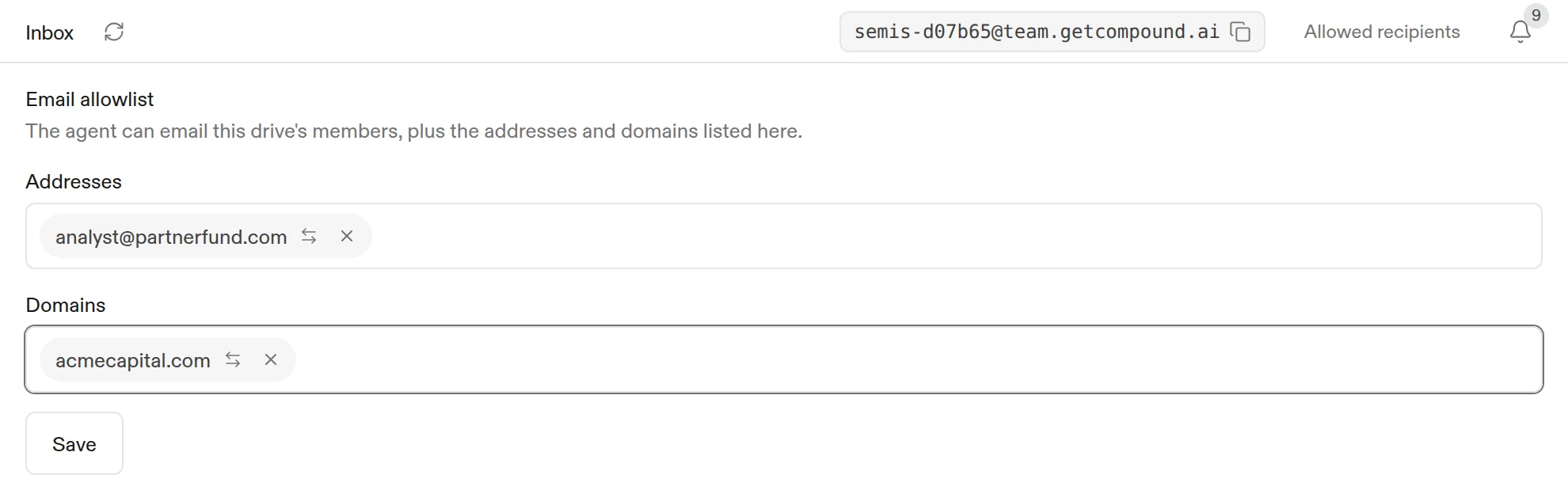
Open the agent, click Inbox, then click Allowed recipients.
Add addresses or domains
Add individual addresses under Addresses (for example, name@example.com) or whole domains under Domains (example.com). A domain matches exactly; subdomains aren’t included.
Choose a direction for each entry
Click the arrow icon on an entry to cycle it between both ways (⇄), inbound only (←, they can email the agent), and outbound only (→, the agent can email them).
Save
Click Save.
Your organization may limit which domains can be added.
Turn email off
To stop an agent from reading or sending email, turn off Read and send email in Agent settings > Capabilities. See Agents and projects.
What to read next
- Agents and projects: create an agent with its own email address.
- Tasks and the chat: follow the tasks an email starts.
- Collaboration: add people to an agent.