Compound can draft, edit, and review Word documents. The agent can write new sections from scratch, restructure existing prose, apply heading styles, build tables, and pull figures from a workbook in the same agent. You can edit the document yourself in the same editor, and every change is versioned.
Start a document
- Generate from a request: “Draft a one-page memo on Acme’s Q3 results based on the transcript and the 10-Q.”
- Edit an existing file: upload a Word document and ask for changes: “Tighten the executive summary to half its length and add a paragraph on the segment guidance.”
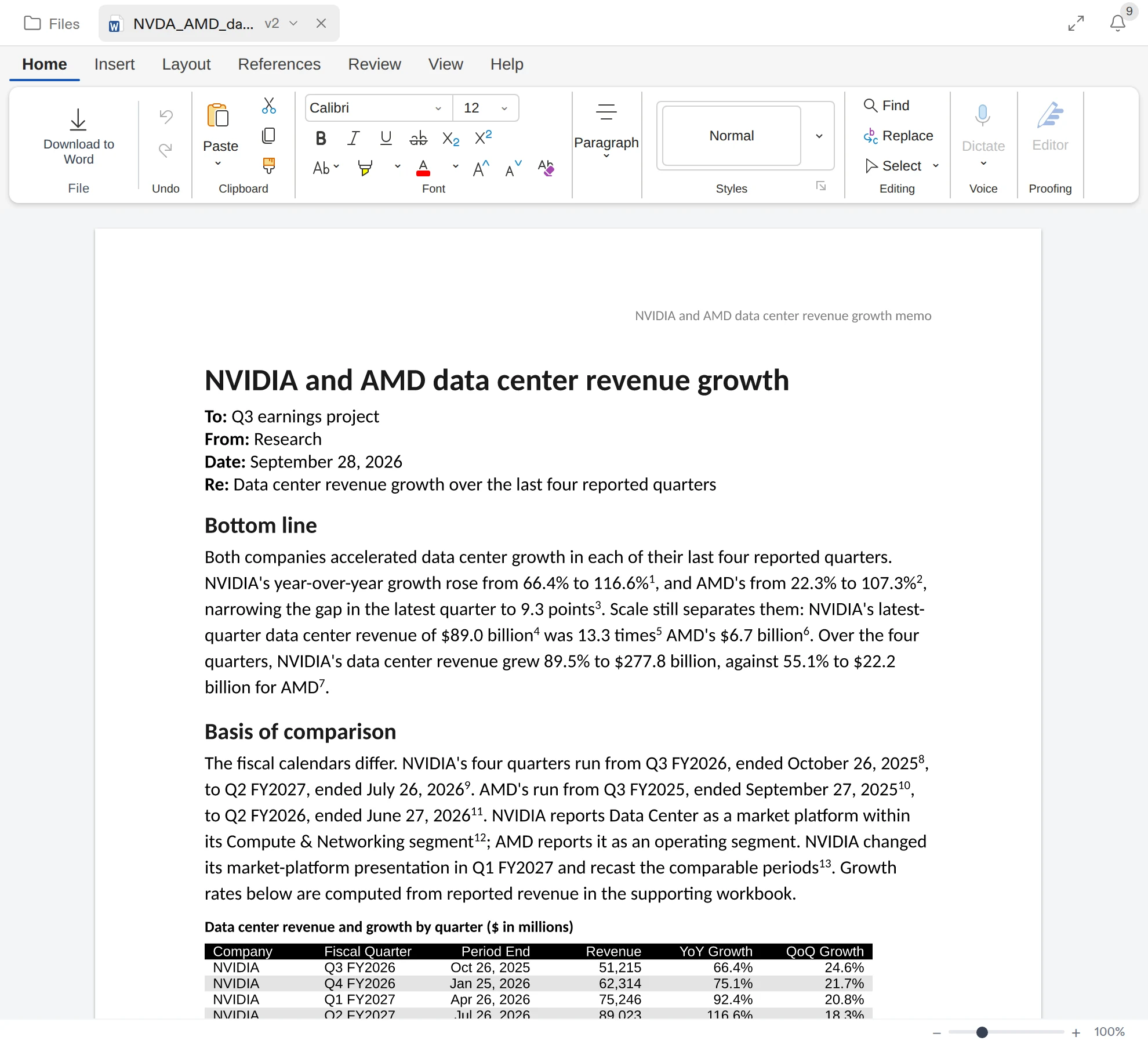
Compound opens .docx, .doc, .docm, and .dotx files in the document editor (.dotm templates can be uploaded but not displayed). The document opens beside the task while the agent works on it; the file’s tab shows a dot while the agent is writing.
Ask for targeted rewrites
Well-scoped requests work best:
- “Make the second paragraph more direct.”
- “Add a sentence after the EBITDA discussion explaining why margins compressed.”
- “Rewrite the risks section to match the tone of the rest of the memo.”
For longer documents, quote a sentence or heading so the agent edits that spot instead of rewriting the whole document.
Formatting
You can ask the agent to:
- Apply heading styles (Heading 1, Heading 2, and so on).
- Build a table from data in the chat or from a workbook in the agent.
- Add bulleted or numbered lists.
- Insert page breaks, headers, and footers.
If you have a house style, upload an example document and ask the agent to follow it. Your organization’s shared conventions (Settings > Organization > Organization Knowledge) are applied automatically unless the agent’s Use organization standards setting is off.
Edit the document yourself
Open the document from Files or from the task to edit it directly. Changes save automatically a couple of seconds after you stop typing. You need edit access to the agent, and you must be on the latest version.
Citations
Facts the agent drew from a source carry a citation marker. Click a marker to see the source and open it. When you download the document from its editor, citation markers become links.
Versions
Every edit creates a new version. Click the file name and version number on the document’s tab, then pick from Versions to view an earlier one. Older versions are read-only.
Download
Download from the document editor with Download to Word (citations become links), or choose Download from the file’s tab menu to get the file as it’s stored. Documents download as Word files with headings, tables, and styles preserved.
What to read next
- Workbooks (Excel): pull figures from a workbook into a document.
- Presentations (PowerPoint): the same flow for decks.
- PDFs: using a PDF as source material.