You can collaborate at three levels in Compound:
- Share an agent: teammates work alongside you. They see the same tasks and files, message the agent, and get notified when they’re tagged.
- Share a task: send one task, as a frozen snapshot or a live view, to people who don’t need the whole agent.
- Share a file: send a link to a single file.
Your default agent, Frankie, is private and can’t be shared. For shared work, create an agent and share that.
Share an agent
Only the agent’s owner can share it. Open the agent, then either click the people icons in the page header (on desktop), or open the agent switcher, choose Agent settings, and click Invite under People. The Share agent panel opens.
Add people
Type an email in Add people by email and pick a role. Teammates are suggested as you type. The person needs a Compound account.
Choose a role
- Editor — can message the agent, start and reply to tasks, and add and edit files. This is the default.
- Viewer — can see the agent’s tasks and files, but can’t message it or change anything.
Click Add
The person gets an email with a link to the agent.
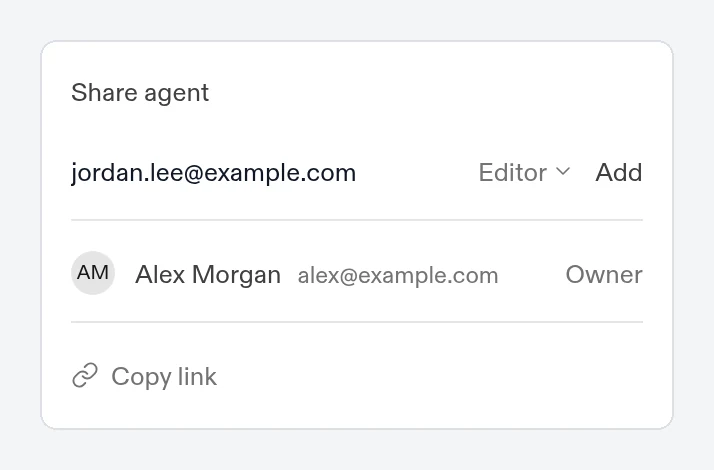
To change someone’s role or remove them, open Share agent again and use the menu next to their name (Editor, Viewer, or Remove). Copy link copies the agent’s address. The link only works for people who already have access.
The agent’s owner is the person who created it. Only the owner can share the agent, rename it, change its capabilities, manage its email allowlist, or delete it.
Tag teammates
Type @ in the chat or in a task and pick a teammate to tag them. They get a notification and can open the task from it.
If you tag someone who can’t open the agent, Compound asks before sending. The owner can choose Give access and send, which adds them as an Editor. Anyone else can choose Notify owner to provide access. Send without tagging sends the message without the tag. In Frankie, which can’t be shared, Send without tagging is the only option.
When a teammate is typing in the same chat or task, you’ll see “Name is typing…”.
Comments
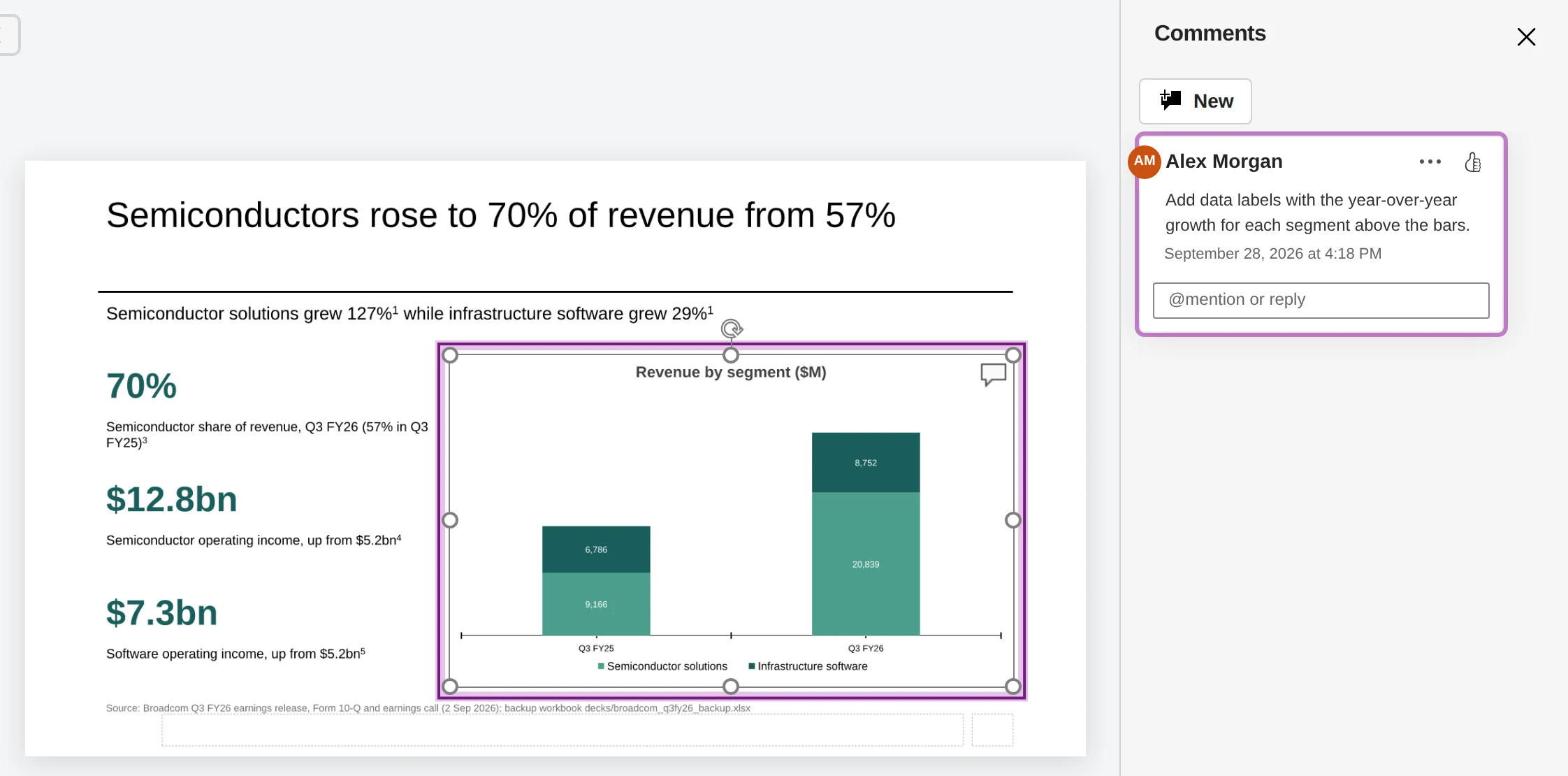
In Excel workbooks and PowerPoint decks, you can comment on the content itself, on a cell range or a slide shape. Right-click and choose Ask Compound, then write your comment.
- The agent acts on comments. A new comment, or a reply from a person, alerts the agent. It makes the change, replies in the thread, and resolves it.
- Everyone who has written in a thread is notified of later replies and when it’s resolved. A notification opens the file at the comment.
- Replying to a resolved comment reopens it.
You need edit access, and the file’s latest version, to comment.
Share a task
Open the task and click the share icon in the task header. Choose how the link behaves. You can’t change this after sharing.
- Snapshot — a frozen copy of the task as it is now.
- Latest — viewers see the task as it keeps going.
Then choose who can open it:
- Only people added — add people by email and click Send.
- Anyone with the link — anyone with the URL can view it. Public links require a snapshot, and your team’s settings may turn them off.
People you share a task with can view it but not change it. Click Stop sharing to revoke access.
Share a file
If you have edit access, right-click a file in Files and choose Share. Choose which version to share, then add people by email with Add people, or set general access to Anyone with the link. Public links need a specific version, not the latest. Copy link appears once the file is shared, and Stop sharing this version revokes it. To share every file in an agent, share the agent instead.
Notifications
The bell in the top right collects what needs you across every agent you belong to: tags, questions, approvals, access requests, and comments. See all opens the full list, which you can filter by agent.
Which to use
- Ongoing work with the same people → share the agent (Editor for people doing the work, Viewer for stakeholders).
- One deal or client that must stay separate → give it its own agent and share only that agent.
- Show someone a finished result → share the task as a Snapshot.
- Let someone follow a task in progress → share the task as Latest.
What to read next
- Agents and projects: create agents and choose what they can do.
- Email: let people outside the agent email it.
- Enterprise: team-level controls and audit log.