An agent is an AI teammate together with the workspace it works in: its own chat, tasks, files, inbox, schedules, and watched companies. Agents keep work separate. An agent only sees its own files and your organization’s shared Organization Knowledge, so analysis for one deal can’t pull in numbers from another. Inside an agent, projects group related tasks and files.
Your default agent: Frankie
Every account starts with a personal default agent named Frankie. Frankie is private to you and can’t be shared or deleted. Use it for one-off questions and personal work. It is also the only agent that can use your connectors.
Frankie’s email address is frankie@getcompound.ai. See Email.
Create an agent
Create an agent for each deal, client, fund, or team that needs its own workspace, and for any work you want to share.
Open the agent switcher
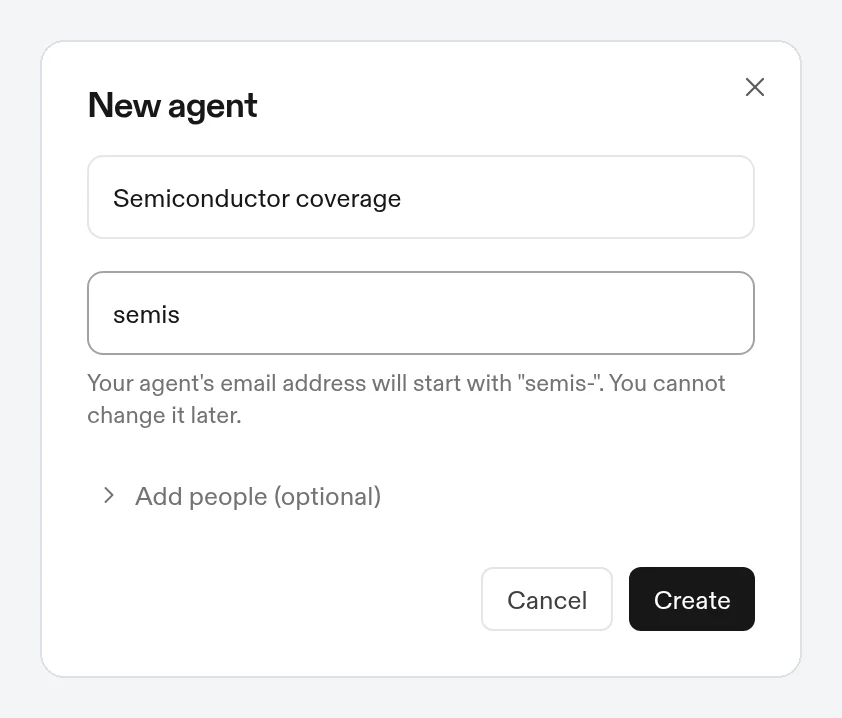
Click the agent name at the top of the left sidebar, then click New agent.
Name the agent
Enter a name (for example, “Acme diligence”).
Choose an email name
The agent’s email address starts with the Email name you enter here. You can’t change it later.
Add people (optional)
Under Add people (optional), add teammates by email and pick whether they join as Editor or Viewer. You can also do this later.
Click Create
The new agent opens. It’s private until you add people.
Switch between agents
Click the agent name at the top of the sidebar. The menu lists your other agents: your default agent (tagged Default) when you’re in a different agent, then your 12 most recent agents. An agent with notifications that need you shows how many. Type in Find an agent to search. When you have more agents than fit in the menu, See all agents opens the full list.
The line under the agent’s name shows who can see it: Private, Shared with a number of people, Team, or Anyone with the link.
Agent settings
Open the agent switcher and click Agent settings. Changes save as you make them.
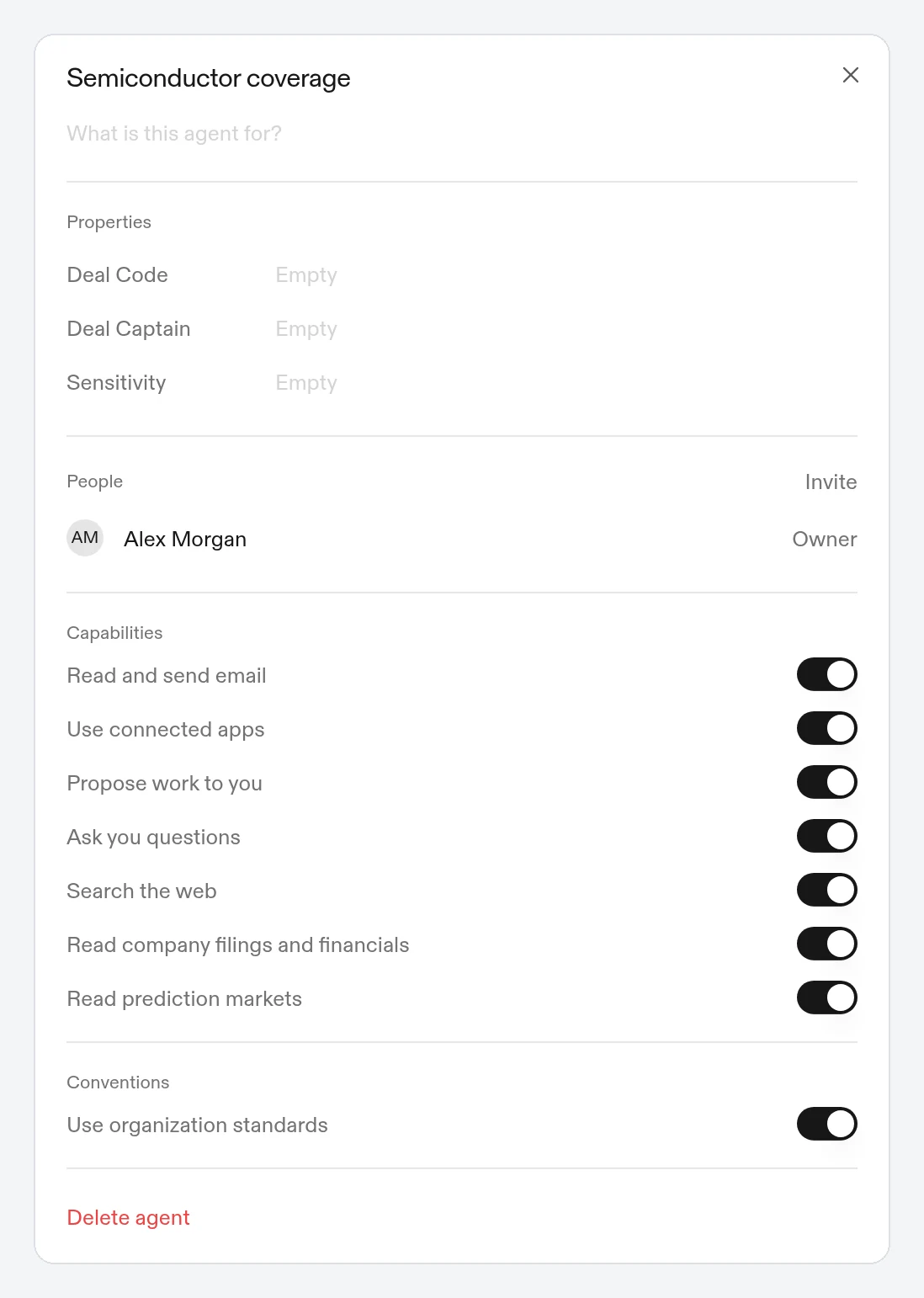
- Name and Description: what the agent is for. The default agent can’t be renamed.
- People: who has access. The owner can click Invite to add more. See Collaboration.
- Capabilities: what the agent is allowed to do. All are on by default:
- Read and send email
- Use connected apps
- Propose work to you
- Ask you questions
- Search the web
- Read company filings and financials
- Read prediction markets
- Conventions: Use organization standards. When it’s off, the agent ignores your organization’s shared formatting conventions and definitions (see Settings > Organization > Organization Knowledge).
- Delete agent: owner only, and not available on the default agent. An Undo option appears after you delete. A deleted agent stays in Settings > Personal > Recycle Bin for 30 days, where you can restore it with Restore.
Only the agent’s owner can change its settings.
Projects
A project groups related tasks and files inside one agent, for example “Q3 earnings” or “Acme data room”. Each project has its own Tasks, Files, and Activity, and its own folder in the agent’s files.
Create a project
Click + next to Projects in the sidebar. On Home, you can also use the New project card, or New next to Projects once you have several projects. Enter a name and, optionally, what the project is for, then click Create.
Work in a project
- Click Add task in a project to start a task that belongs to it.
- Drop files onto the project page to upload them into the project’s folder.
- To move an existing task into a project, right-click it in the task list (list layout) or in the sidebar and choose Move to project. Proposed tasks can’t be moved until you run them.
The sidebar lists up to five projects with recent activity, meaning a task opened or updated in the last 7 days. All projects lists every project, including a new one with no tasks yet.
Rename or delete a project
Open the project, click the project menu, and choose Rename or Delete. Deleting a project archives its tasks, including any still running, and keeps its files in the agent. To remove the files too, delete the project’s folder in Files.
Home
Home is the first page you see for an agent. It shows:
- A summary of what finished since yesterday, what is running, and what needs your input or approval.
- Your active projects, each with its latest tasks.
- Miscellaneous tasks: tasks that aren’t in a project.
- Recent files: files your tasks produced.
While an agent has no tasks or projects yet, Home offers two example projects, Earnings week and Diligence packet, to show how work is organized. Start either one, or create your own.
What to read next
- Tasks and the chat: give the agent work and follow it.
- Files: the agent’s files and folders.
- Collaboration: share an agent with teammates.