You give Compound work in the chat. Quick questions are answered in the chat itself. A larger piece of work becomes a task: the agent opens it, plans it, runs it in the background, and reports back when it’s done or when it needs you. You can run several tasks at once and keep chatting while they work.
The chat
The chat sits next to every page on desktop. On a phone, it’s the Chat tab. Type a question or describe the work, then press Enter to send. Press Shift+Enter for a new line, or on a phone, tap the send button. An unsent draft is kept if you leave the page.
Good requests say what you want, from what, and in what form:
- “Build a three-statement model for Acme from its last three 10-Ks.”
- “Summarize what changed in the risk factors between the last two 10-Qs.”
- “Draft a two-page memo on the Q3 print using the transcript and our model.”
The line above the chat box shows the page, project, or file you’re looking at, and that context is sent with your message. When you select cells in a workbook, click Add to message to include the range. Click the × on it to remove it.
Effort
The effort menu next to the microphone sets how hard the agent works on your request. It shows Auto until you change it.
- Fast: quick and brief.
- Auto: Compound matches effort to your ask. This is the default, and the menu returns to it whenever the chat reloads.
- Deep: thorough, and uses more credits.
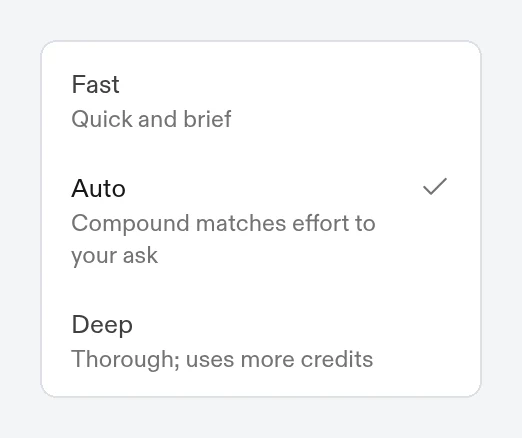
Fast and Deep tasks show their level in the task header.
Attach files
Drag files onto the chat, paste an image, or click Add Files and choose Upload Files or Upload Folder. Uploaded files are saved to the agent’s Files in an uploads folder, inside the project’s folder when you’re in a project. Your next message refers to them automatically.
Mention files, people, and tasks
- Type @ and start typing to mention a file, a folder, or a teammate who has access to the agent. A mentioned teammate is notified.
- Type # to refer to a task by number, for example
#12.
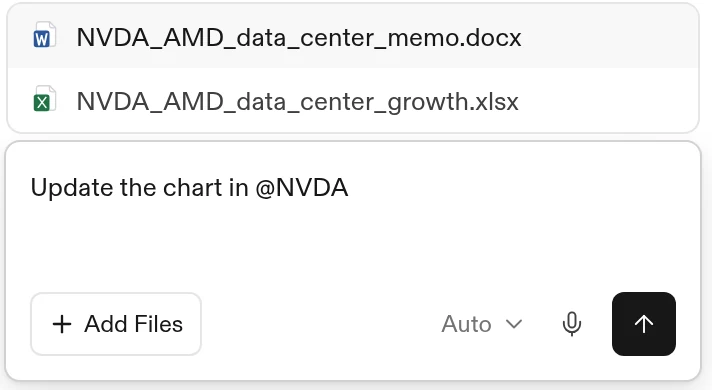
The @ list only offers people who can open the agent. If someone loses access before you send, Compound asks what to do. The owner can choose Give access and send, anyone else can choose Notify owner to provide access, and everyone can choose Send without tagging.
Dictate
Click the microphone (Dictate) to speak your message. You can also hold Alt+Shift+D (Option+Shift+D on a Mac) to talk. A quick press toggles recording on and off. The shortcut doesn’t work while you’re in a spreadsheet grid.
The Tasks page
Click Tasks in the sidebar to see every task for the current agent, grouped by state:
- Proposed: work the agent suggests. It doesn’t start until you run it. Click Run now on its Kanban card or task page, or open it from the list and click Run task. Dismiss removes the proposal.
- Running: in progress, with the current step and elapsed time. Paused tasks are shown here too.
- Needs input: the agent asked you a question and is waiting for your answer.
- Done: finished, with the files it produced.
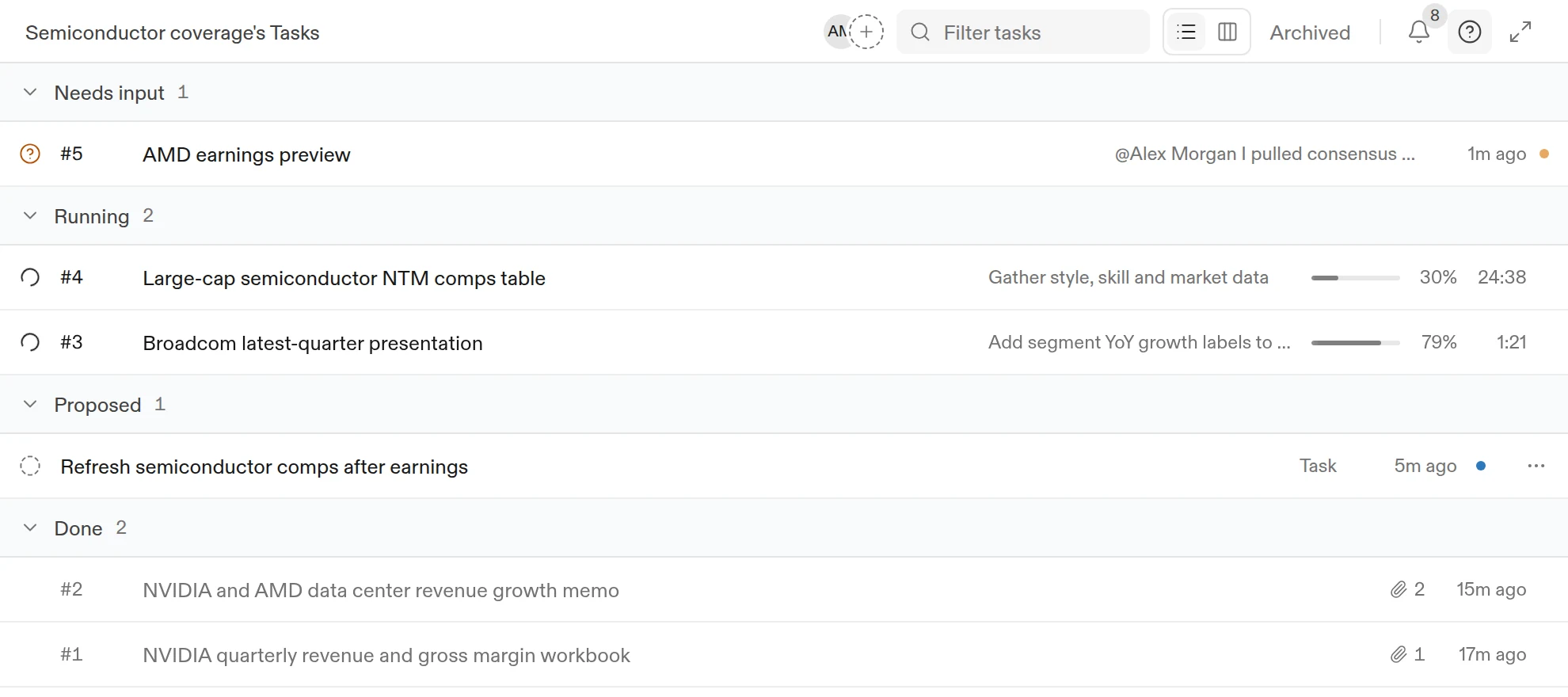
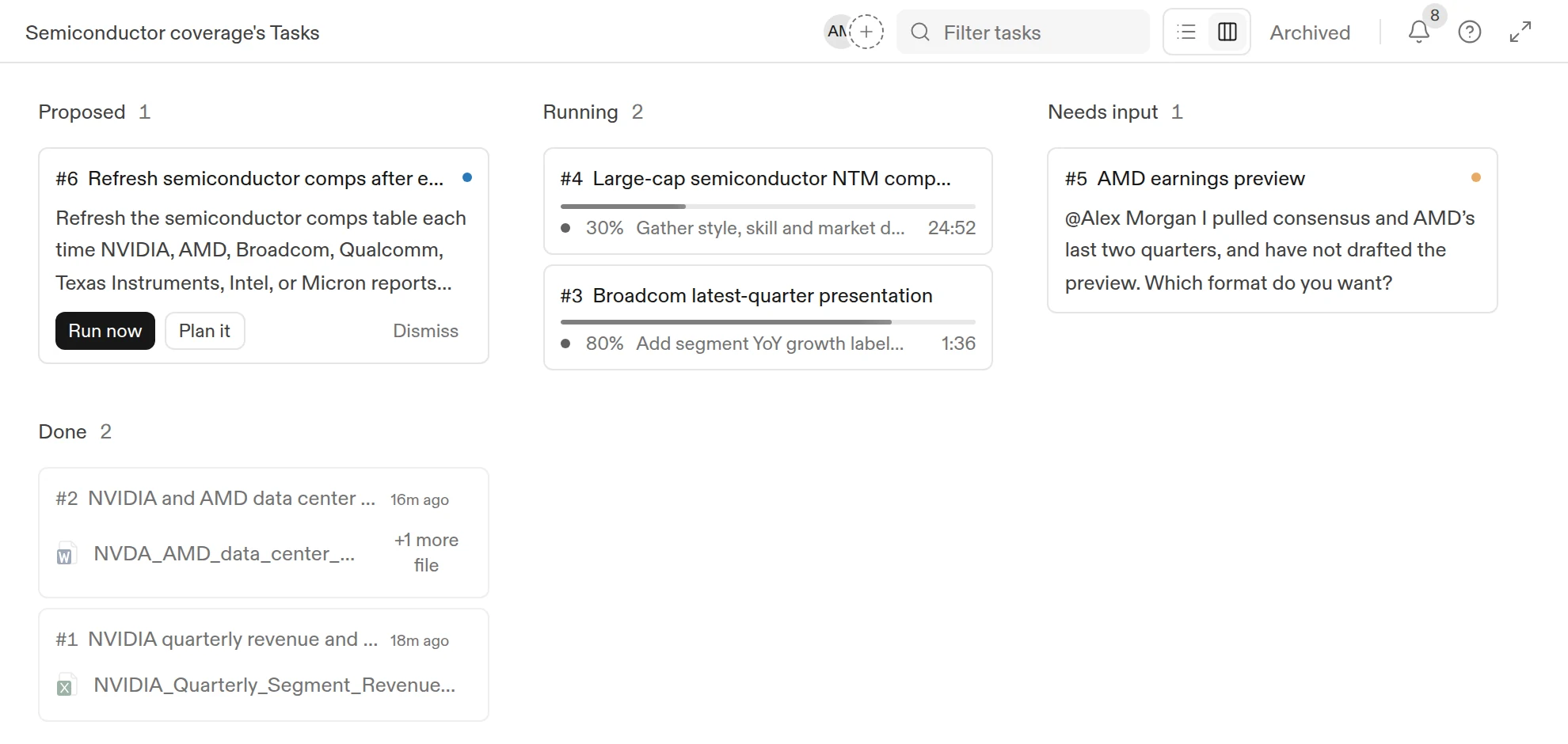
Switch between the list and Kanban layouts with the two icons in the header, and use Filter tasks to find a task by name. Tasks you’ve archived are on the Archived page.
Right-click a task (long-press on a touchscreen) to open its menu. It always offers Open and Copy link. Depending on the task’s state, it also offers Move to project, Pause (running), Resume (paused), Mark as read (done), or Archive (anything not running). To restore an archived task, choose Unarchive.
The sidebar also lists the agent’s tasks, except archived ones, with the ones waiting on you first.
Inside a task
Click a task to open it. The task page shows:
- The brief: what the task was asked to do. If it came from the main chat, the original messages are under Asked in the main chat.
- The plan: the steps the agent intends to take, ticked off as it goes.
- The conversation: the agent’s updates, questions, and answers, plus a collapsible log of the actions it took.
- Files: the files the task wrote, open in a canvas beside the conversation.
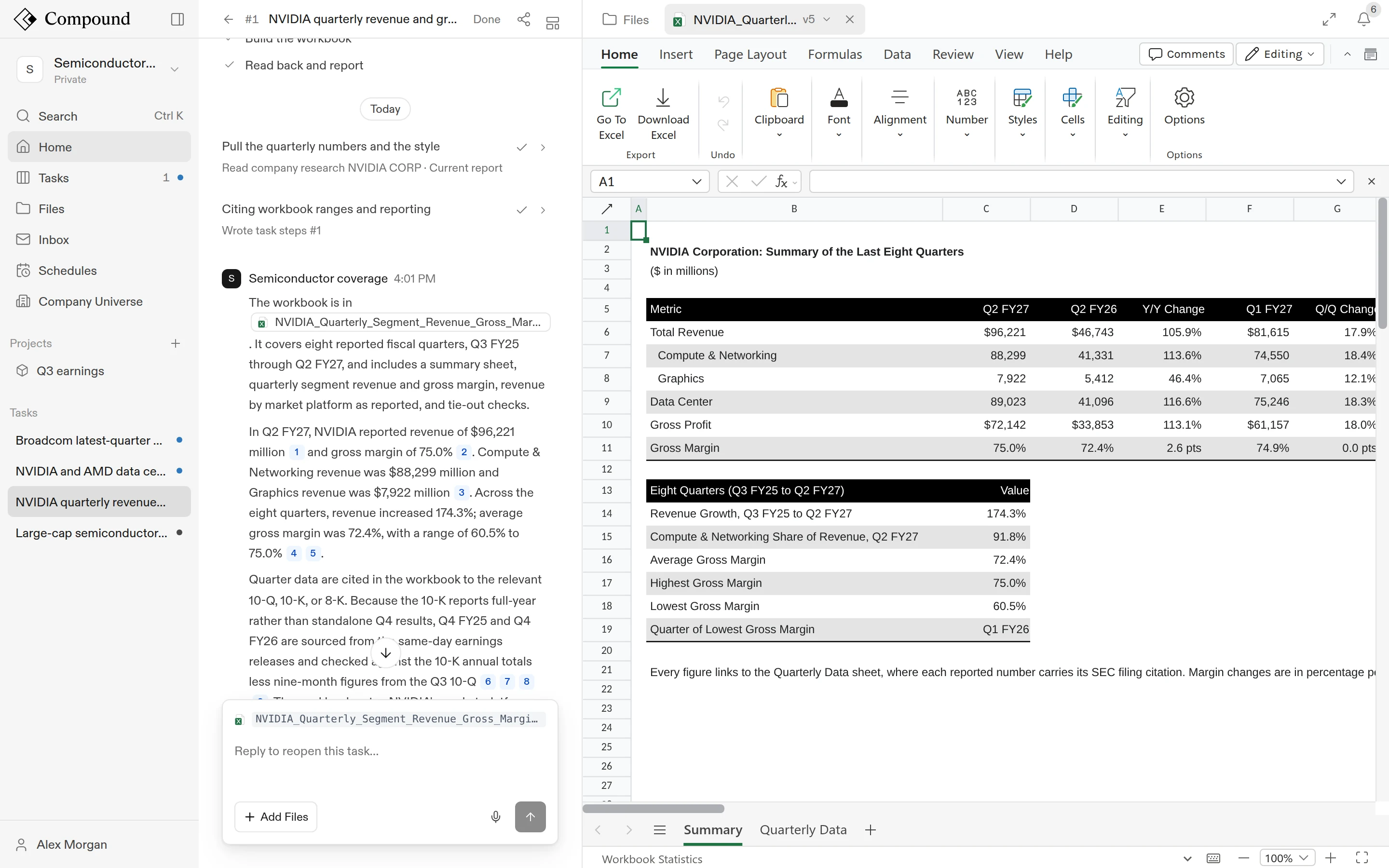
Reply to a task
You can reply at any time:
- While a task is Running, reply to redirect it or add to it. With the box empty, the send button becomes Pause.
- When a task is in Needs input, your answer resumes it. If the agent offers choices, click one, or type your own answer in the box.
- Replying to a Done or paused task reopens it.
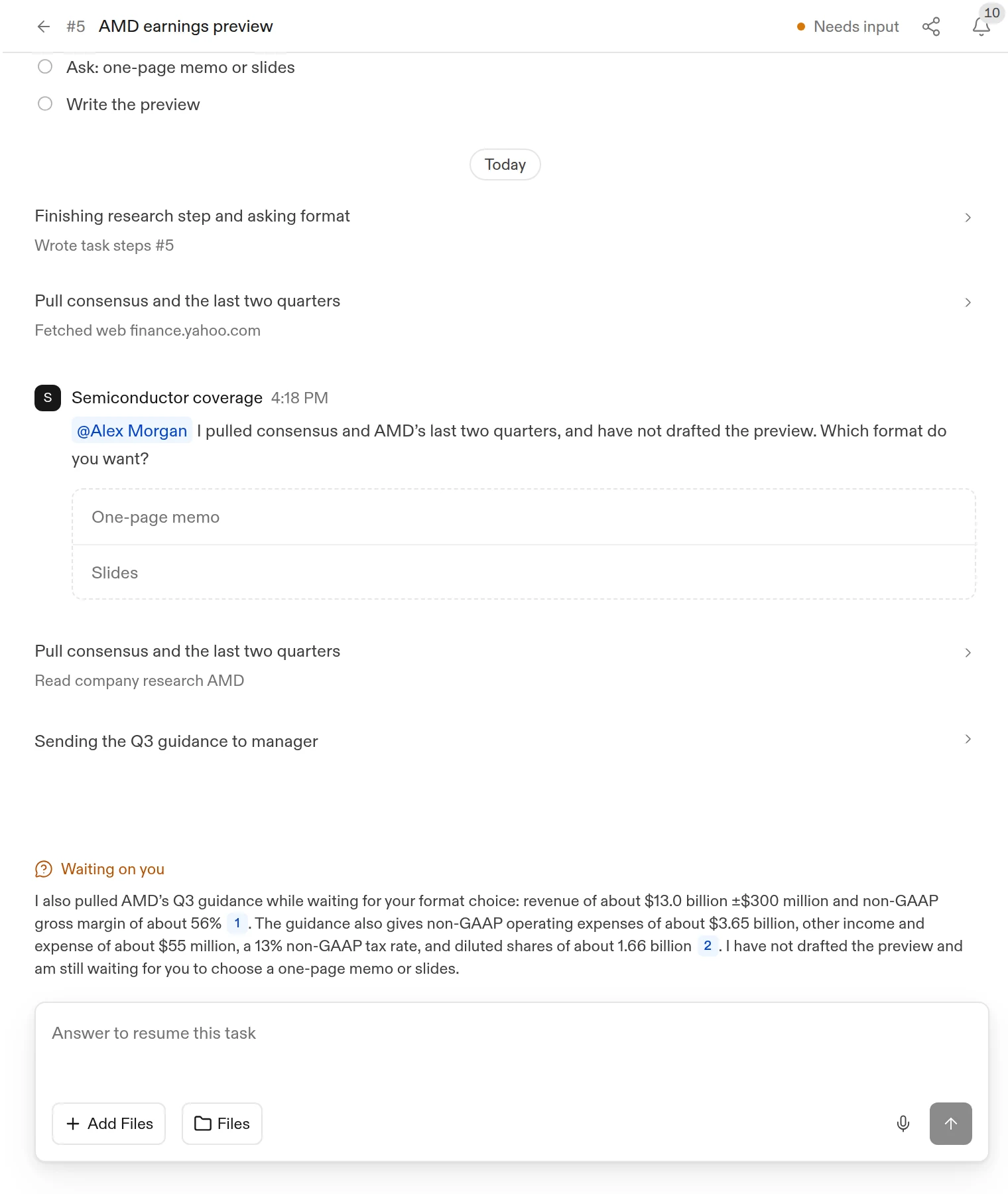
Share a task
Click the share icon (Share) in the task header. Add people by email and click Send, or set access to Anyone with the link. Once the task is shared, Copy link appears. Choose how the link behaves:
- Snapshot: a frozen copy of the task as it is now.
- Latest: viewers see the task as it keeps going.
Under access, choose Only people added or Anyone with the link. Public links require a snapshot, and your team admin can turn them off. People you add can view the task but not change it. Click Stop sharing to revoke the link. You choose Snapshot or Latest when you first share, and you can’t change it afterwards.
Notifications
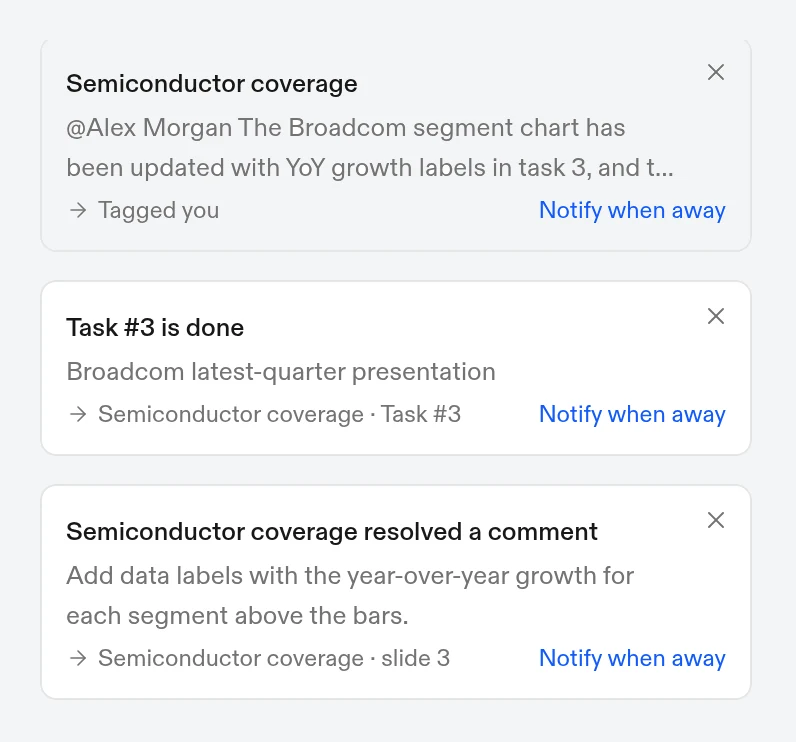
On desktop, the bell in the top right shows two groups. Needs you holds questions, approvals, mentions, comments, and access requests. Updates holds new and finished tasks and resolved comments. Click See all to open the full list across all your agents. When a notification pops up, click Notify when away on it to allow browser notifications.
What the agent can do
With its default capabilities, the agent can:
- Read your files, and create or edit Excel workbooks, Word documents, PowerPoint decks, and Markdown files.
- Read PDFs and cite the page it drew from.
- Pull SEC filings, earnings transcripts, financial statements, stock prices, and company news; search the web; and read prediction markets.
- Query the apps you’ve connected (default agent only).
- Read and reply to email sent to the agent’s address.
- Follow companies and act when they report.
- Run instructions on a schedule.
In Agent settings > Capabilities you can turn off email, connected apps, web search, company data (which also stops following companies), and prediction markets per agent. You can also choose whether the agent proposes work or asks you questions. See Agents and projects.
What to read next
- Files: open, edit, and download what the agent produces.
- Schedules: run the same instruction every day, week, or month.
- Collaboration: work on an agent with teammates.