A team agent is a shared AI teammate owned by a group within your team. It has its own name, its own email address, and a drive the group shares. Everyone in the group can reach it — by email or in Slack — and its work lands in one shared drive instead of scattering across personal accounts.
Because a team agent runs on one drive with one memory, its work compounds: research it does today is context a teammate can build on next week.
Team agents are created and managed by team managers, admins, and owners. Other members can work with the agents their groups already have, but can’t create or configure them.
Before you start
- You must be a manager or above (manager, admin, or owner) on the team.
- Each team agent is owned by exactly one group, and a group can have one agent. Create a group for the agent first, or reuse an existing group that doesn’t have an agent yet.
- Group members can always reach the agent. If you want people outside the group to email it too, you can add them to an allowlist after setup.
Set up a team agent
Create a group for the agent
A team agent is scoped to one group — only that group’s members can reach it, and its chats and files stay within the group.
- In Compound, open Settings and go to the Groups tab.
- Click Create group and give it a name (for example, Deal Desk).
- Open Manage members and add the people who should be able to work with this agent.
You can point one agent at your deal team and another at a coverage desk — each is walled off from the other. To let the whole firm reach an agent, add everyone to its group.
Open the Agents tab and start setup
- In Settings, go to the Agents tab.
- Click Set up team agent (or Add agent if your team already has one).
Fill in the setup form
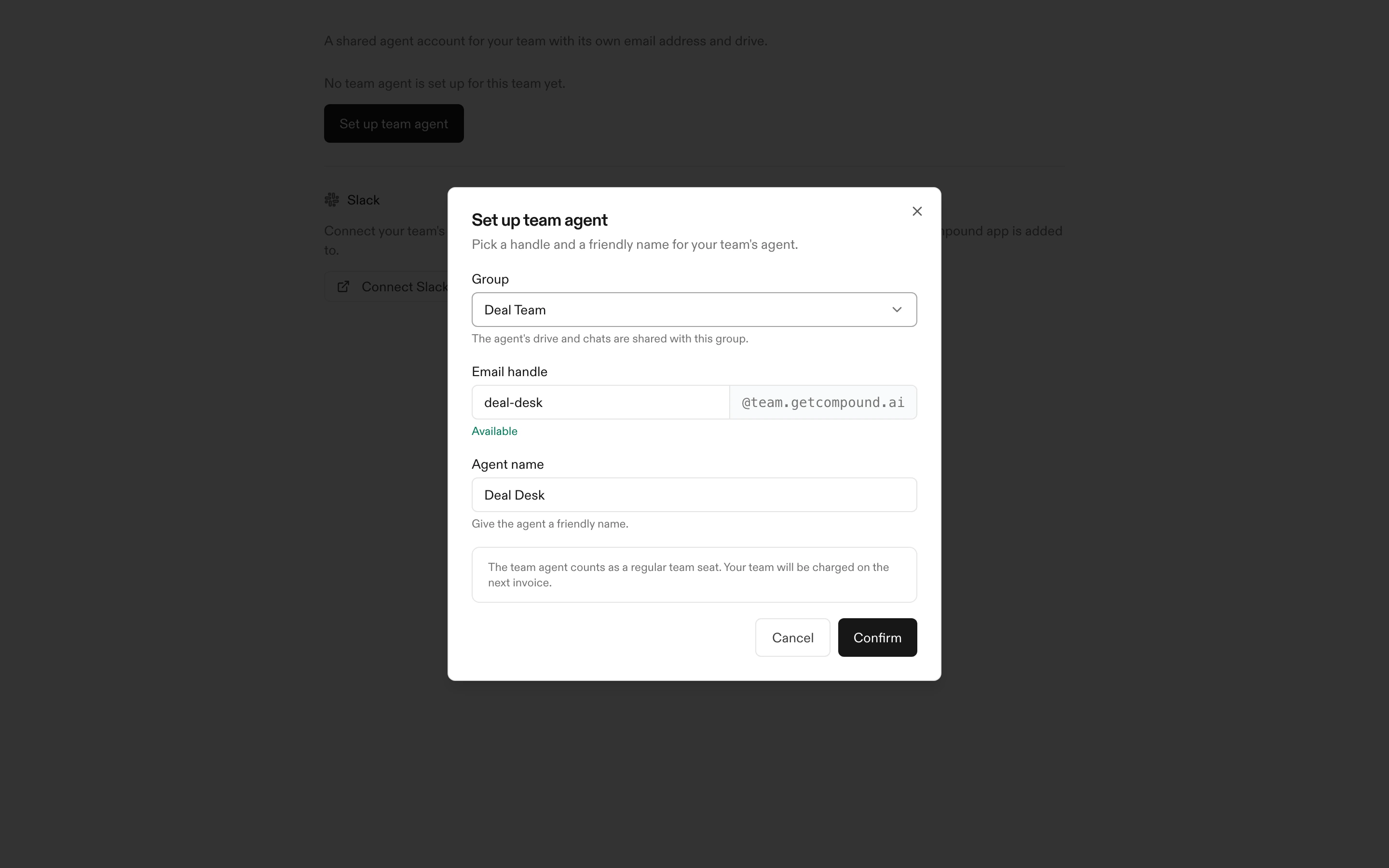
In the Set up team agent dialog, provide three things:
- Group — select the group that will own the agent. Its drive and chats are shared with this group. (If your team has no groups yet, the dialog links you to Manage groups. If every group already has an agent, create a new group first.)
- Email handle — the first part of the agent’s email address. It must be 3–30 characters, using lowercase letters, digits, and hyphens, and can’t start or end with a hyphen. Compound tells you whether the handle is Available. The full address becomes
handle@team.getcompound.ai— for example,sam-acme@team.getcompound.ai. - Agent name — a friendly display name like Sam or Avery. This is how the agent shows up to your team.
Click to confirm. Compound creates the agent’s account, its email address, and a drive shared with the group.
A team agent doesn’t count as a paid seat. Its usage draws from your team’s shared credits, so it won’t add to your invoice.
Connect Slack (optional)
To reach the agent in Slack, connect your team’s Slack workspace once — then each agent answers to its own @handle in any channel the Compound app is in.
- On the Agents tab, find the Slack section and click Connect Slack workspace.
- Approve the Compound app in Slack. You’ll be returned to the Agents tab.
- Back in the agent’s row, click Set handle to choose the
@handleyour team will mention it by. Compound suggests one based on the agent’s name; you can change it.
Slack @name mentions require a paid Slack plan. On Slack’s free plan, reach the agent by email instead, or upgrade your Slack plan.
Configure the agent (optional)
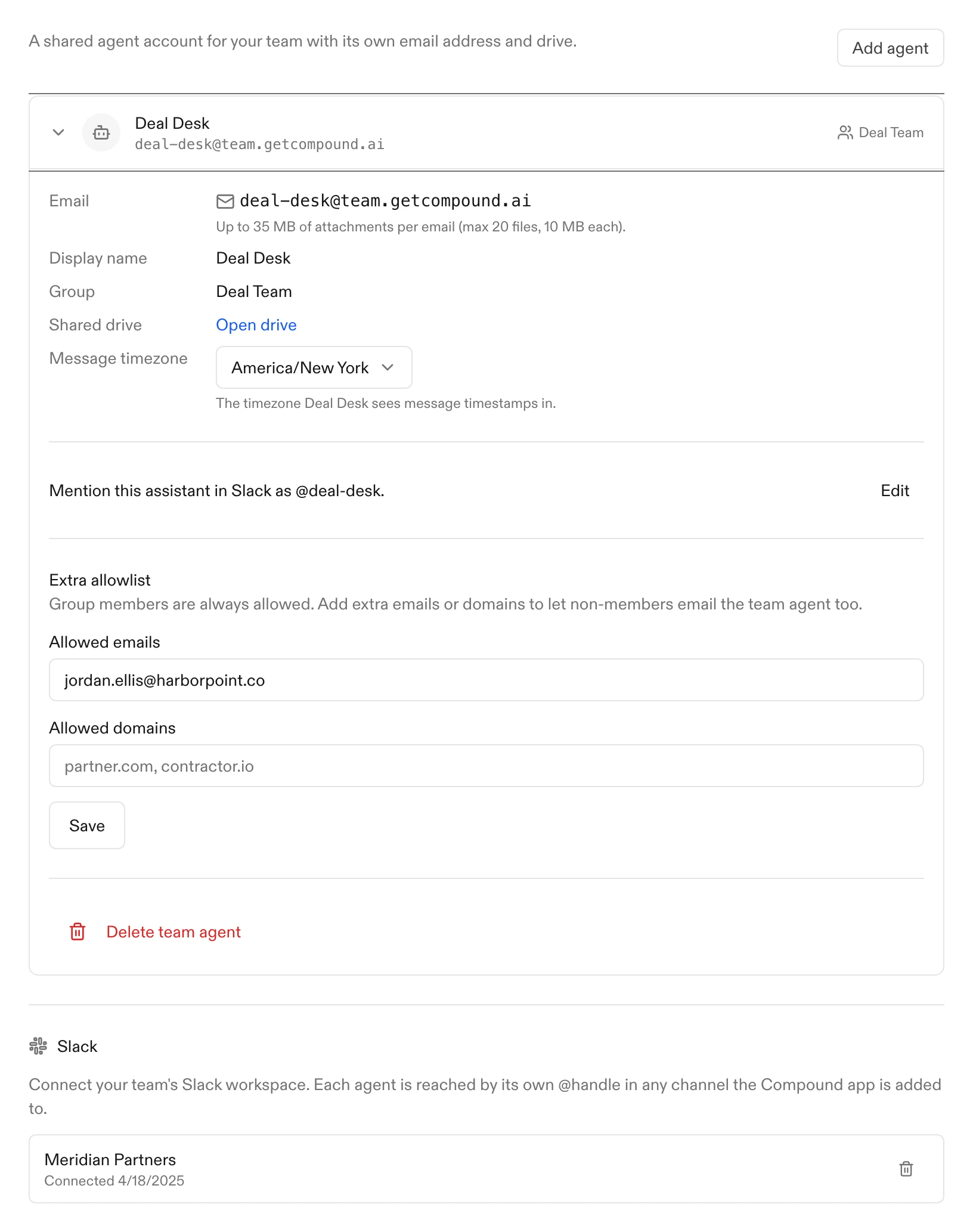
Expand the agent’s row on the Agents tab to fine-tune it:
- Message timezone — the timezone the agent reads message timestamps in. It’s pre-filled with your own timezone; change it to a specific zone if the group works in a different one.
- Extra allowlist — group members are always allowed. To let people outside the group email the agent, add individual addresses under Allowed emails or whole domains under Allowed domains (for example,
partner.com). The agent only responds to group members and anyone on this allowlist.
You can also see the agent’s full email address and open its shared drive from here.
Working with a team agent
Once it’s set up, the whole group works with the agent — no one operates it alone.
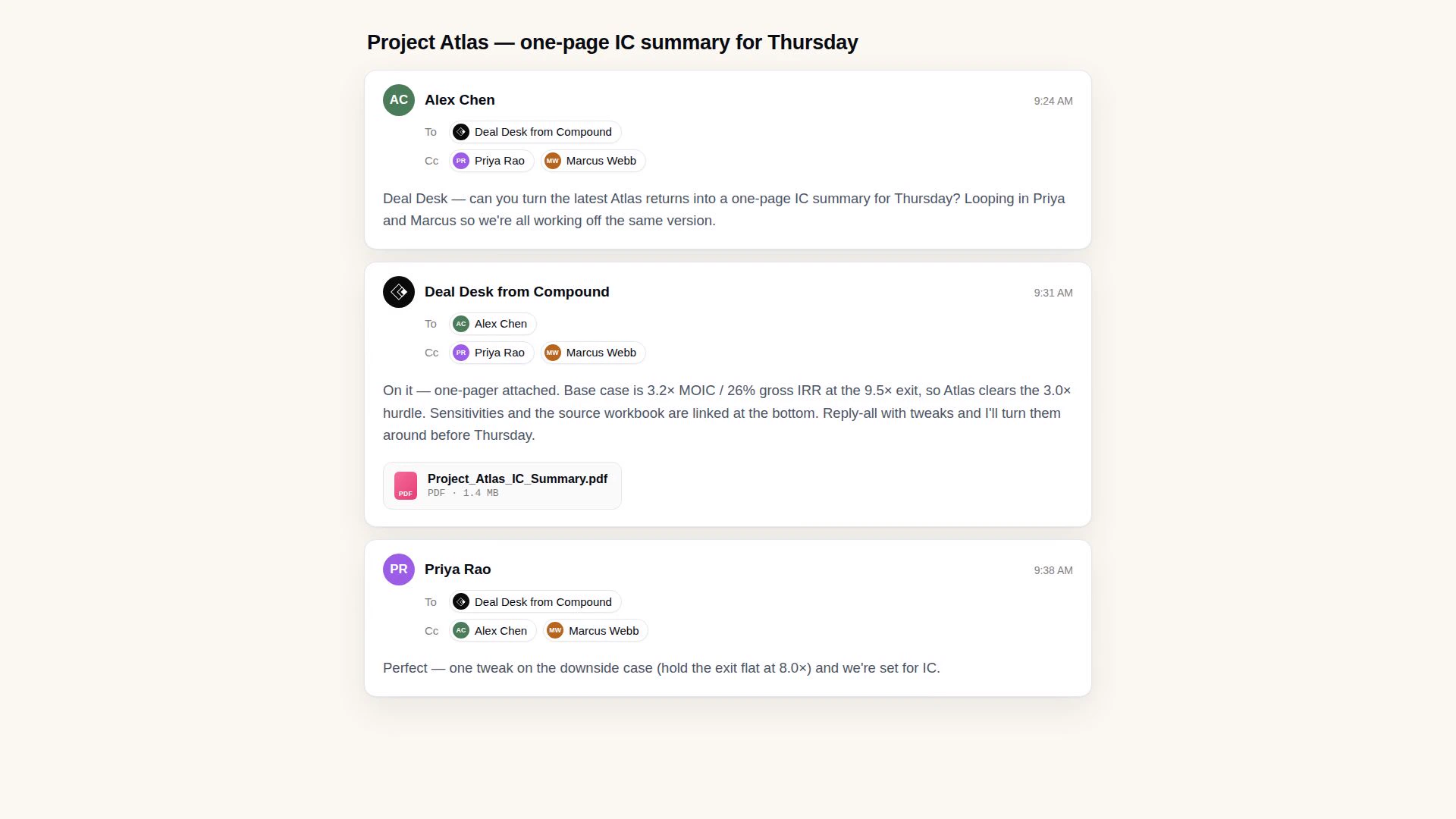
- Email — send the agent a task the way you’d email a colleague, with the deck, data, or memo attached, and it replies with the work attached. Cc members of the group so everyone has visibility. (Attachments: up to 35 MB per email, max 20 files.)
- Slack — mention the agent by its
@handlein any channel the Compound app is in. It picks up the request, works through it, and posts the result back in the thread with links and finished files attached.
Behind either channel it’s doing the same thing — running the analysis, research, models, and documents through Compound — and every chat and file lands in the shared drive. If you email the agent to follow up on work it did in Slack, it picks up right where it left off, and vice versa.
Managing and removing an agent
Everything above is editable later from the agent’s row on the Agents tab — the display name, message timezone, allowlist, and Slack handle. Changes are recorded in the team audit log (Settings > Security > Audit Log).
To remove an agent, expand its row and click Delete team agent. This permanently deletes the agent account, its shared drive, and every artifact in that drive — it can’t be undone.
What to read next
- Use Compound from email — how email chats work, and routing work to a specific Drive.
- Chats and the AI agent — how the agent runs analyses and edits artifacts.